LinkedIn carousel template for UX designers
UX designers can show their thinking, not just their screens. This template turns a design lesson into a carousel that hiring managers and peers read to the end. Below is a sample carousel Slidler made from the text in the editor; change the text to yours and make your own in under a minute.
Sample carousel (5 of 9 slides)
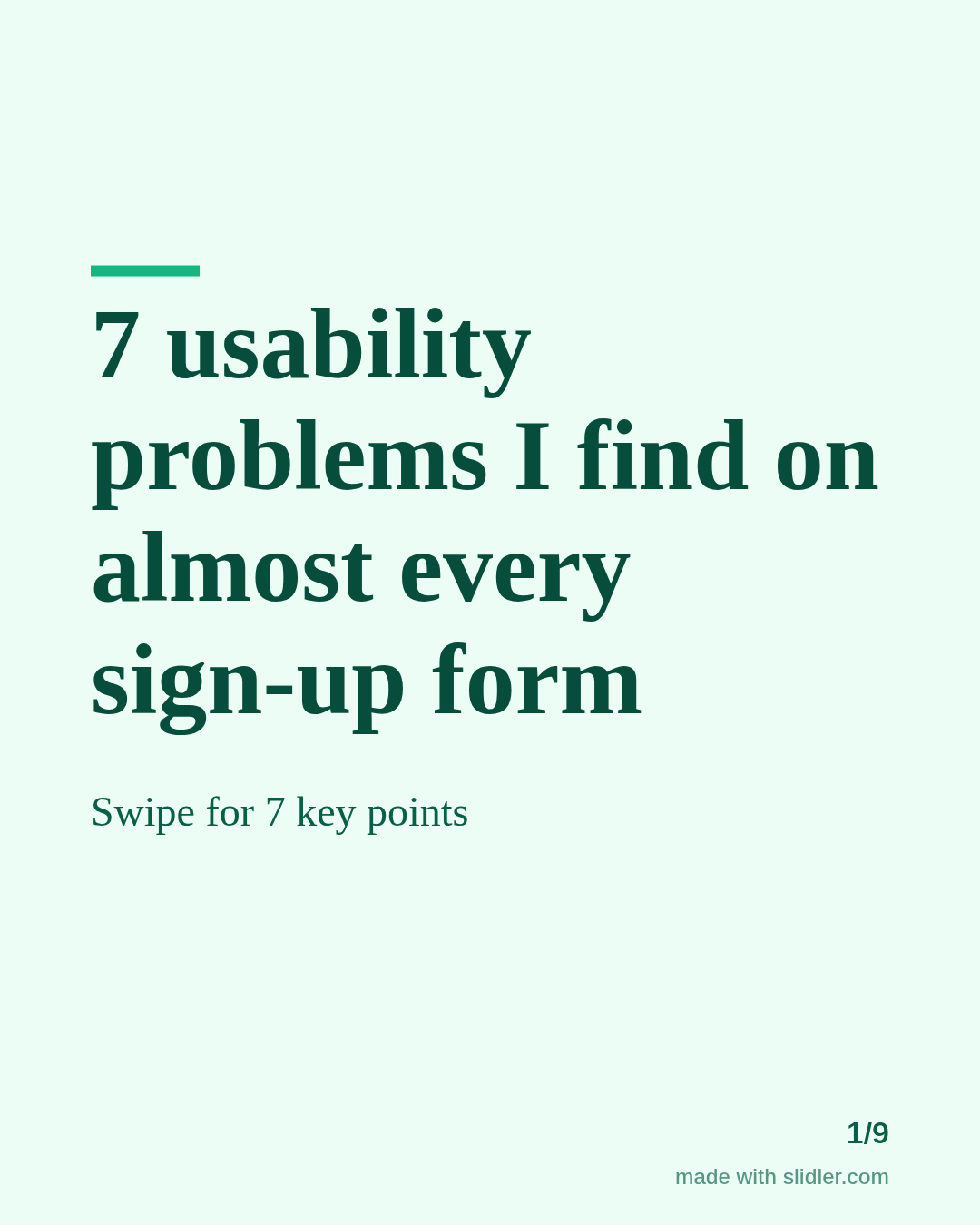
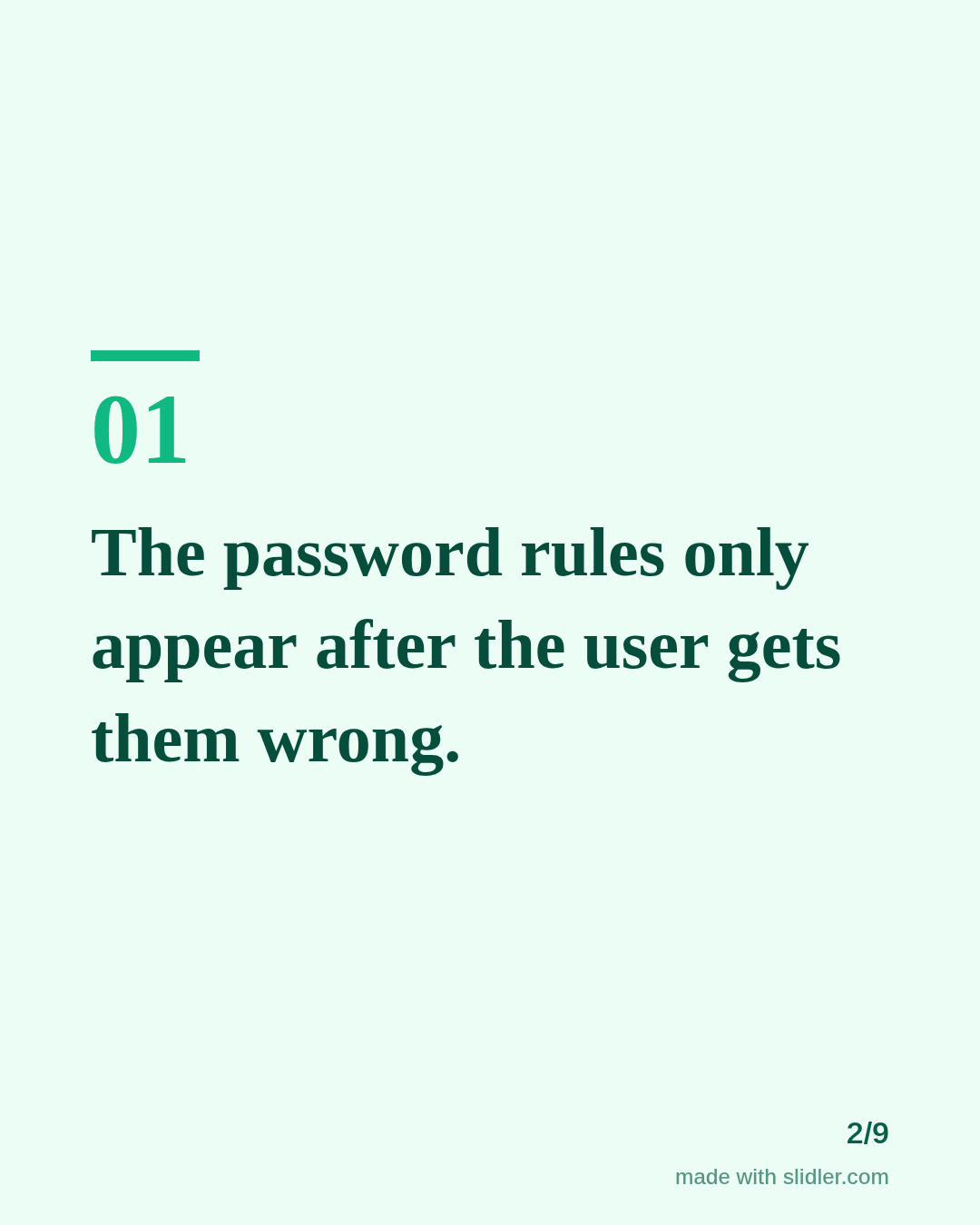

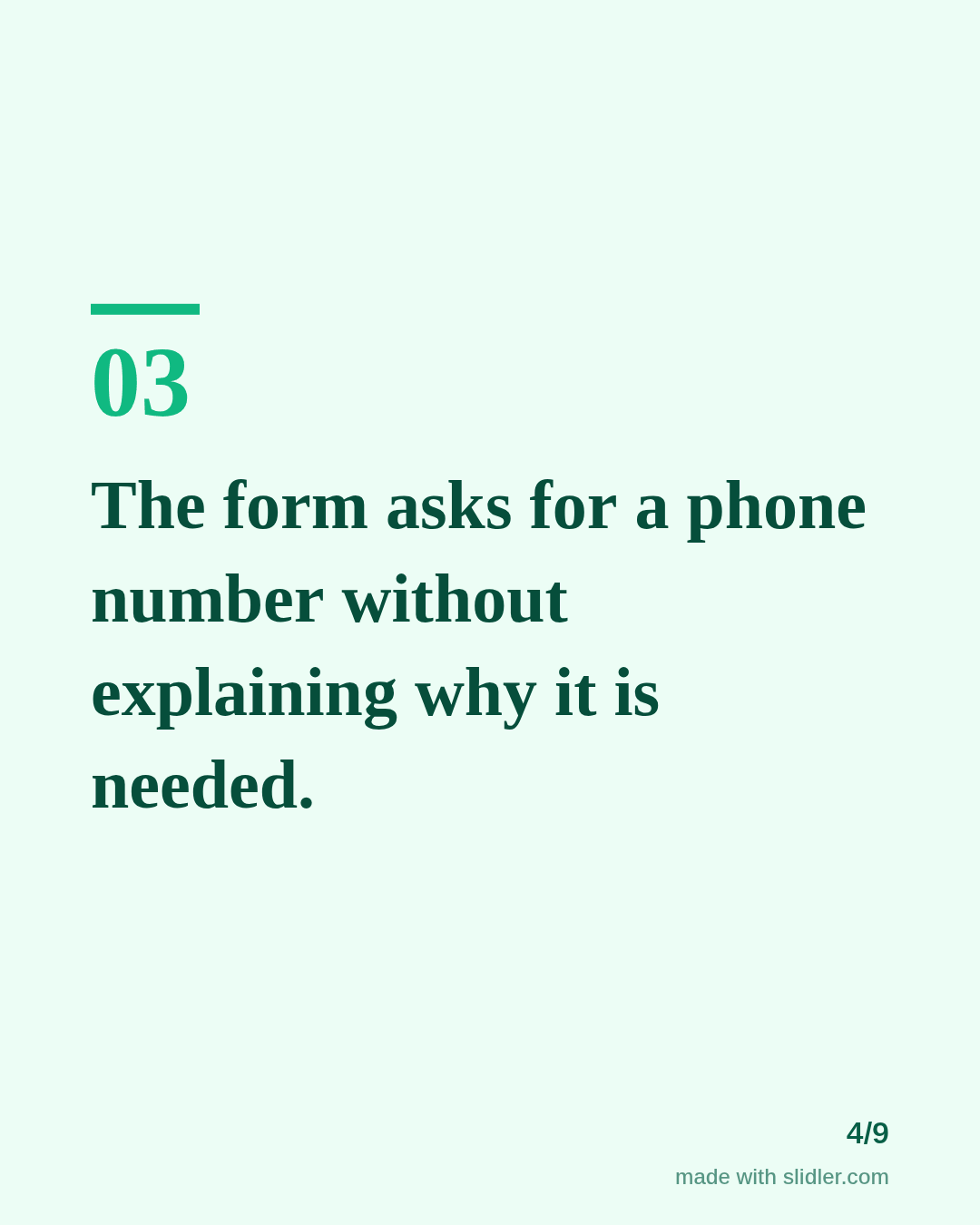
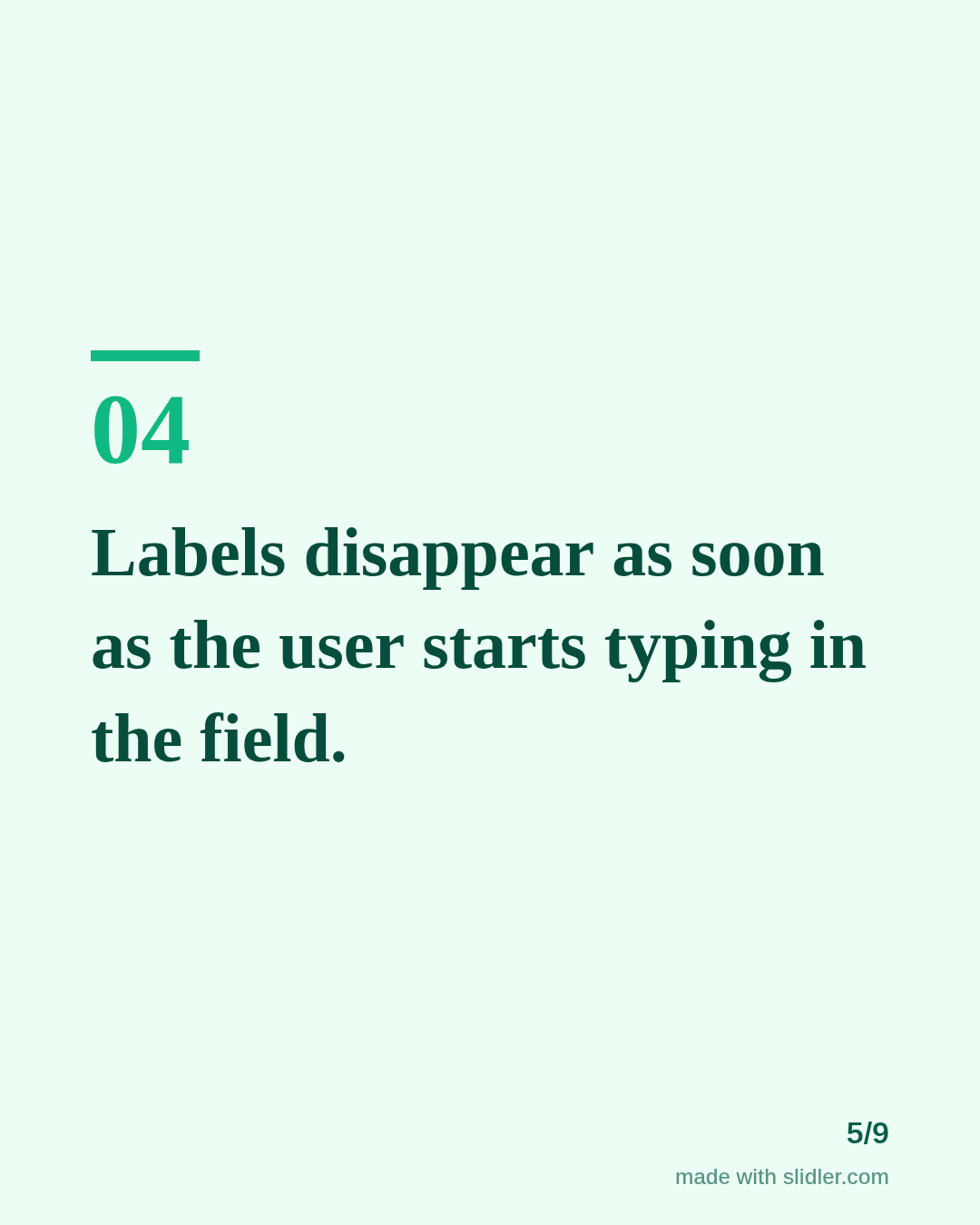
How to use this template
- Cover: a number and a familiar screen.
- One problem per slide, described from the user's side.
- Pair the carousel with a before-and-after image if you have one.
- Ask readers which problem annoys them most.
Tip: Describe what the user feels or does, not the component name; it reads clearer to non-designers.
Edit the sample and make your carousel (free, no sign-up)
The first line becomes the cover; each sentence becomes a slide. Replace the sample with your own words.
FAQ
What should UX designers post on LinkedIn?
Usability lessons, case study highlights, before-and-after redesigns and research findings.
Can I add screenshots to a Slidler carousel?
Slidler makes text slides; for screen comparisons use the before-and-after slider page and link both in your post.
Is this template free?
Yes. Slidler is free and needs no account. Free exports carry a small “made with slidler.com” mark.
What size are the slides?
1080×1350 pixels (4:5 portrait), the size LinkedIn and Instagram show largest in the feed. LinkedIn gets a PDF; Instagram gets a zip of PNGs.
Related templates
- LinkedIn carousel template for graphic designers
- Case study LinkedIn carousel template
- Myths vs facts LinkedIn carousel template
- LinkedIn carousel template for founders
- LinkedIn carousel template for recruiters
Start from your own content instead: Text to carousel · Before & After Image Slider · All carousel templates