LinkedIn carousel template for graphic designers
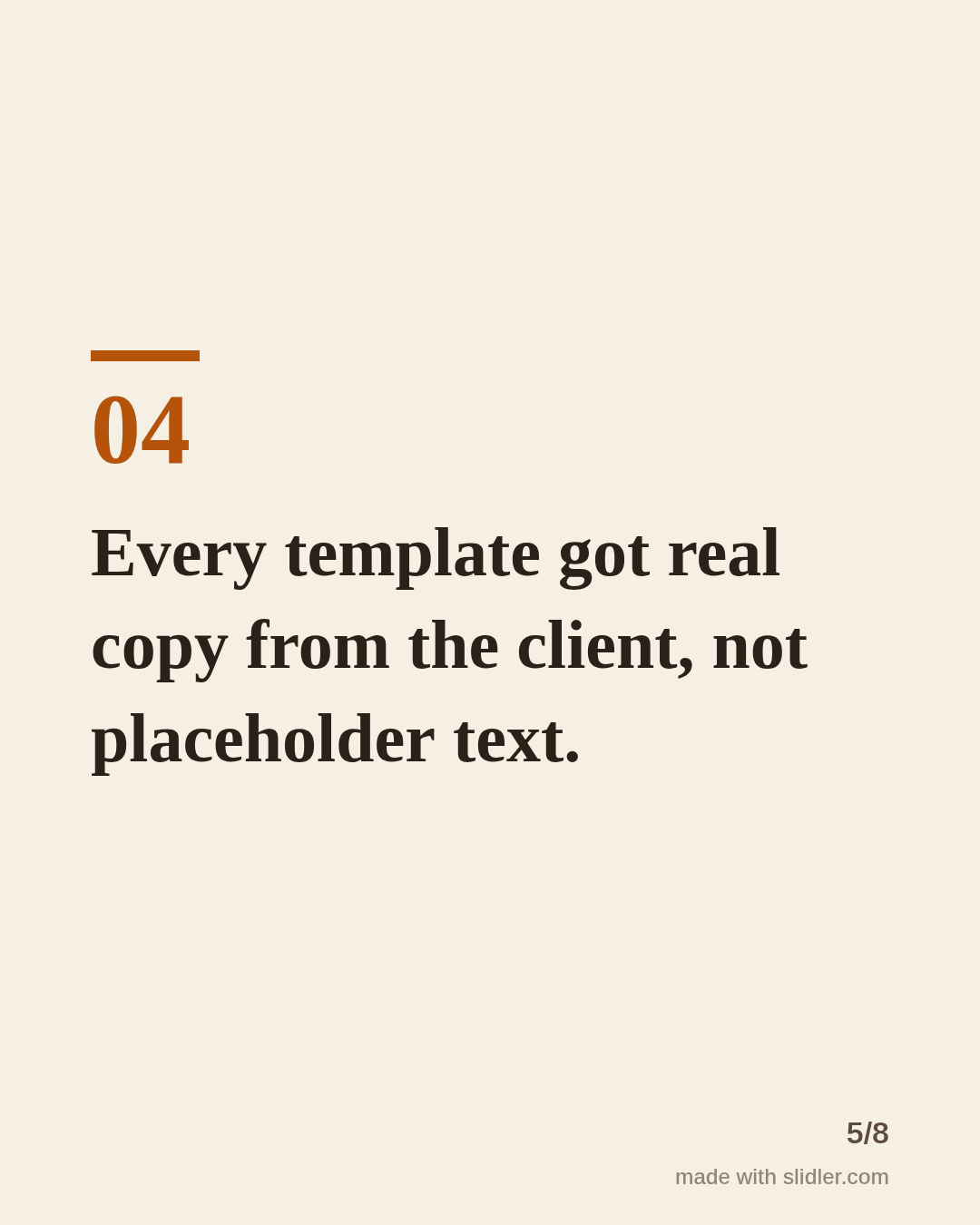
Designers often show finished work but not the thinking behind it. This template explains the reasoning, which is what clients hire you for. Below is a sample carousel Slidler made from the text in the editor; change the text to yours and make your own in under a minute.
Sample carousel (5 of 8 slides)
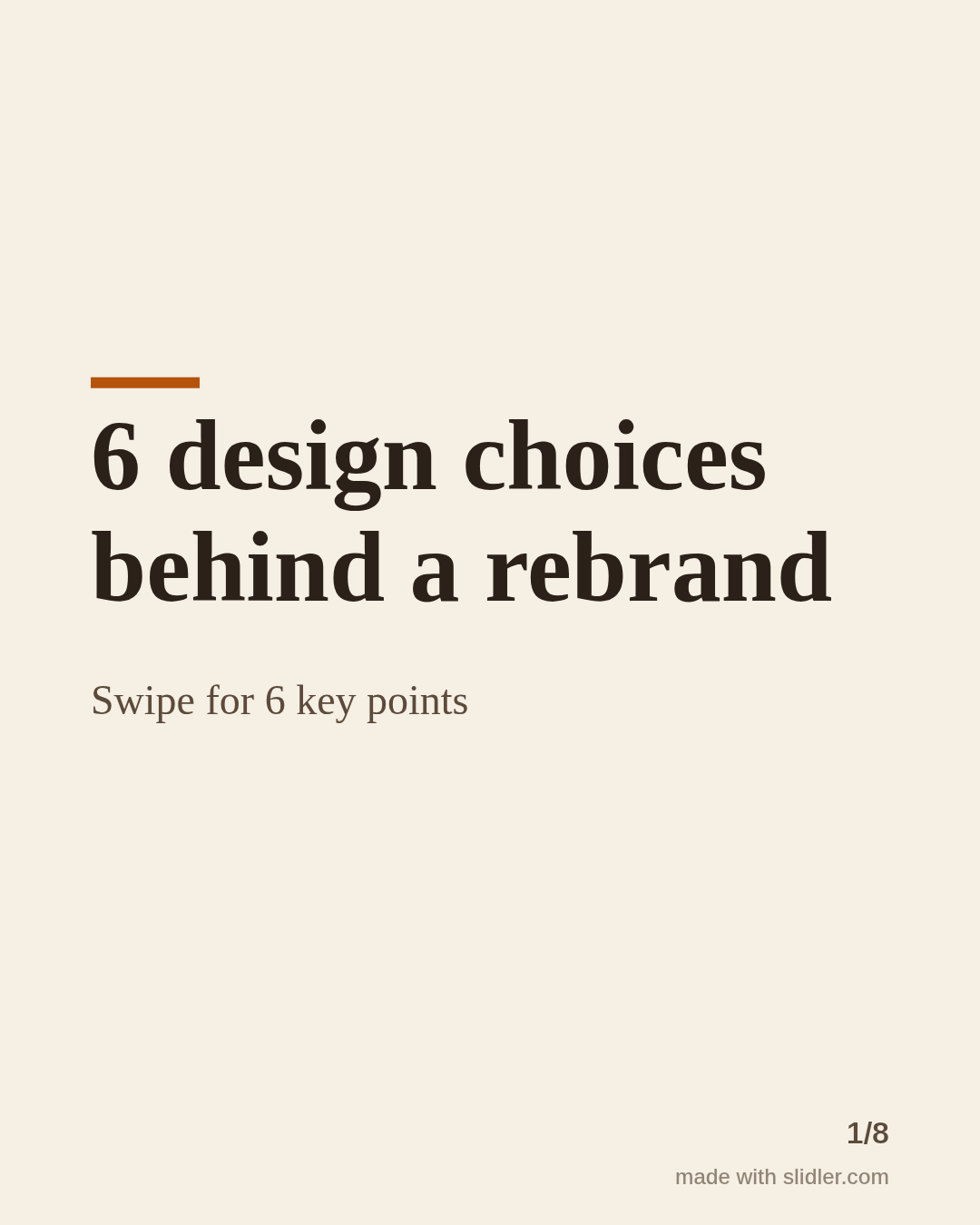
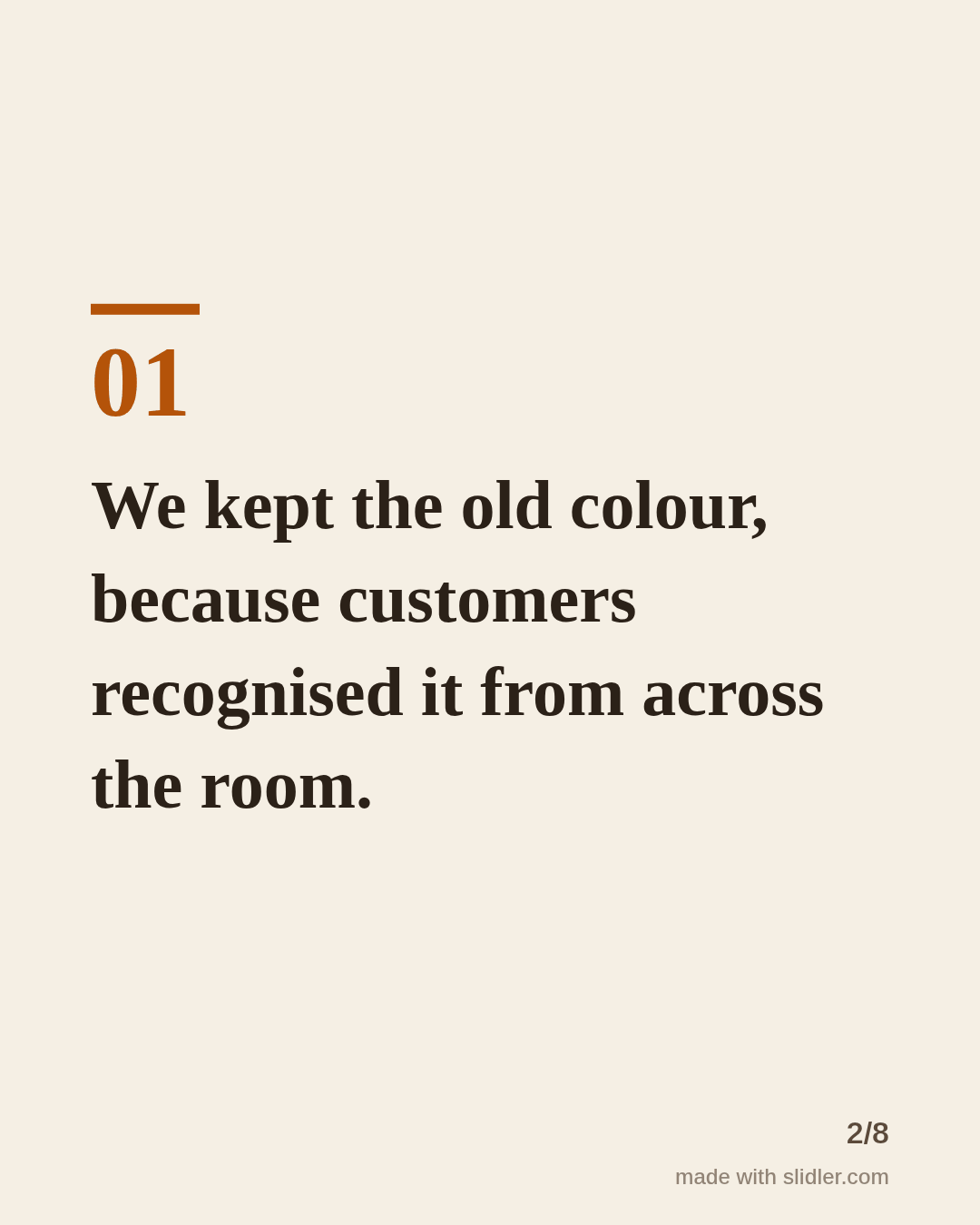
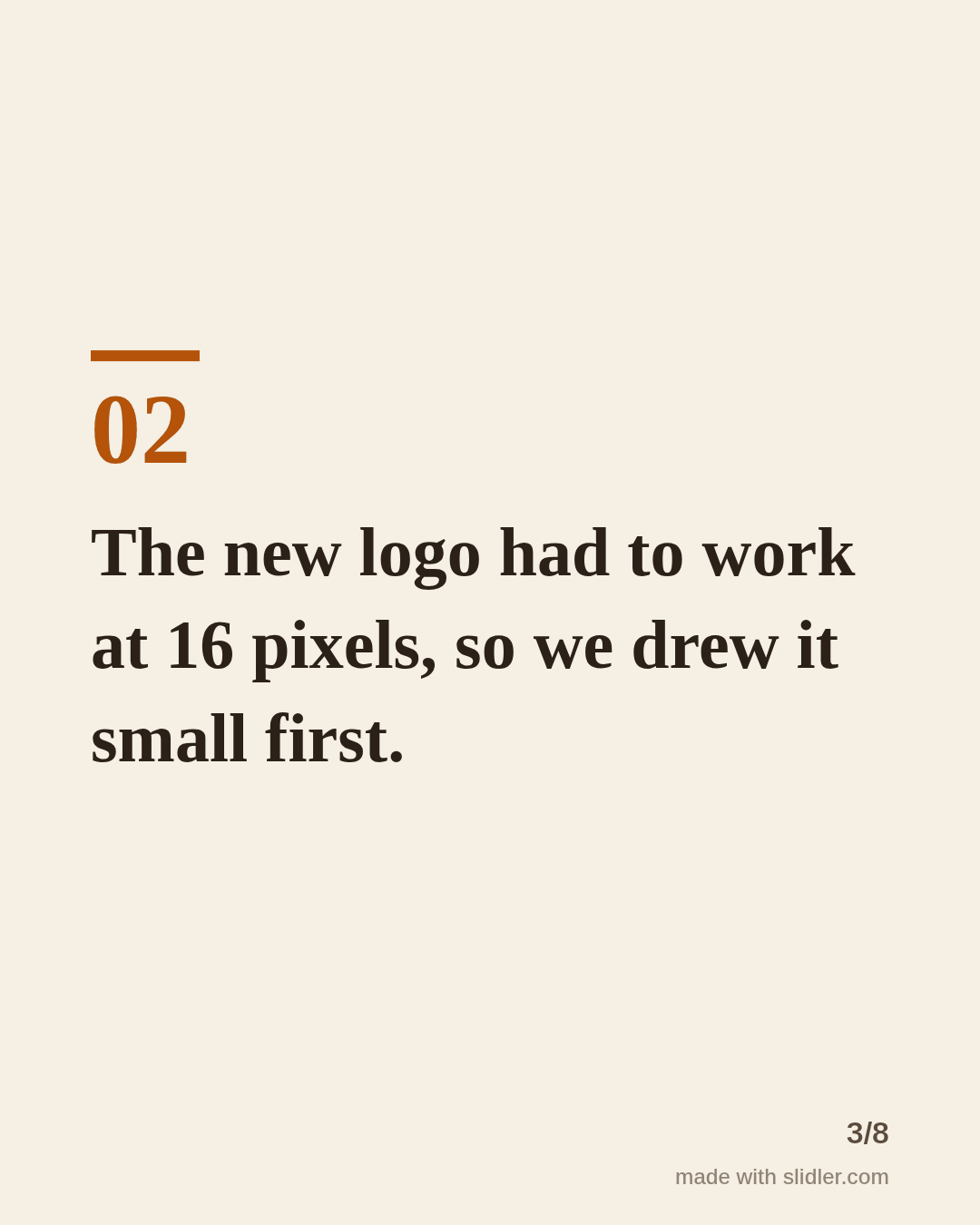
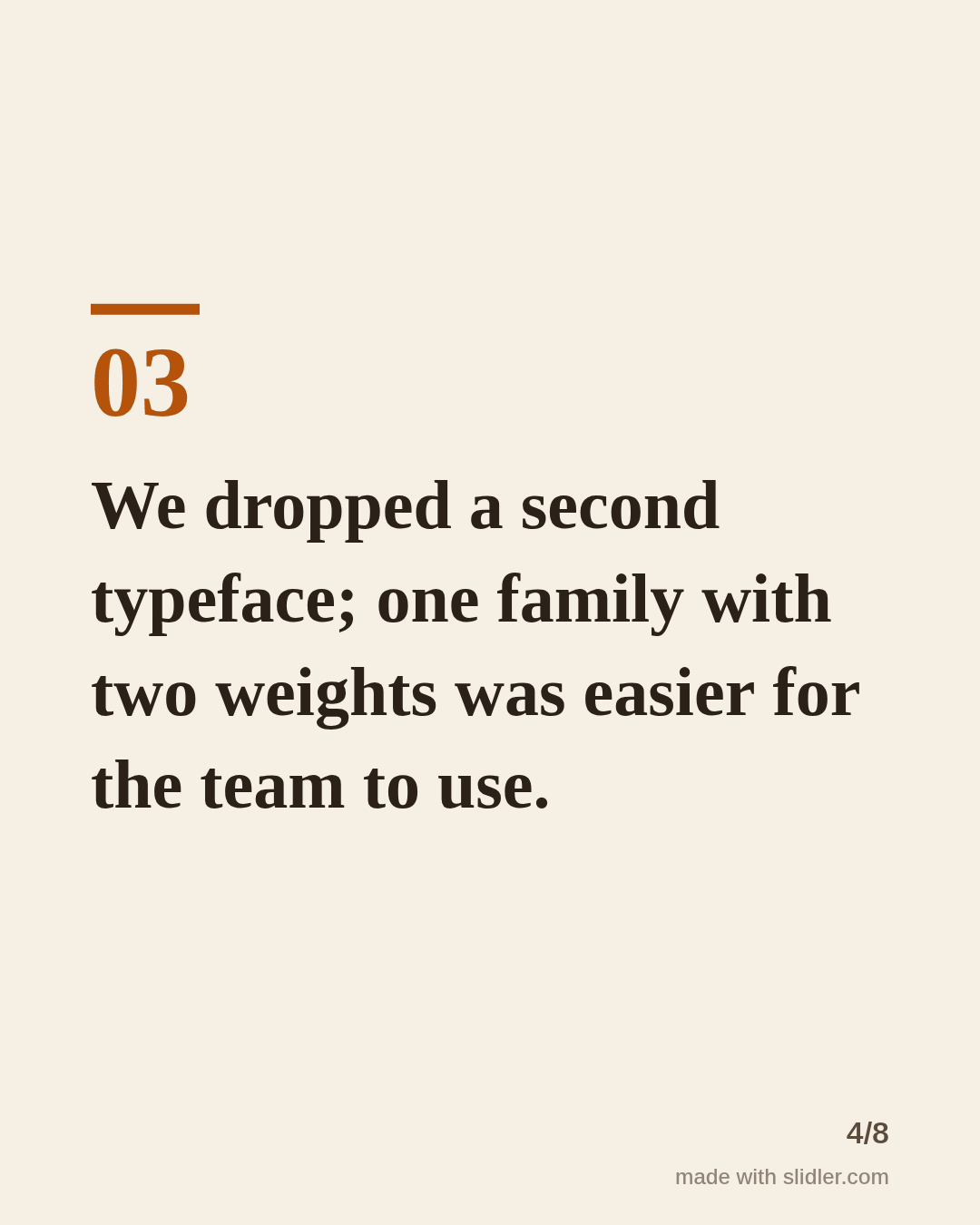
How to use this template
- Cover: the project and the number of decisions.
- One decision per slide, with the reason.
- Put your visuals in the post next to the carousel, or add them in your design tool.
- End with what you would do differently or a call for similar projects.
Tip: Slidler slides are typographic. Use them as the story and post your mockups next to them, or open the PDF in your design tool to add images.
Edit the sample and make your carousel (free, no sign-up)
The first line becomes the cover; each sentence becomes a slide. Replace the sample with your own words.
FAQ
Can I change the fonts and colours?
You can pick one of six templates in Slidler. For full brand styling, export the PDF and edit it in your design tool.
What should designers post?
Process breakdowns, before/after rebrands, critiques with permission, and tips on working with clients.
Is this template free?
Yes. Slidler is free and needs no account. Free exports carry a small “made with slidler.com” mark.
What size are the slides?
1080×1350 pixels (4:5 portrait), the size LinkedIn and Instagram show largest in the feed. LinkedIn gets a PDF; Instagram gets a zip of PNGs.
Related templates
- Case study LinkedIn carousel template
- Comparison LinkedIn carousel template
- LinkedIn carousel template for agencies
- LinkedIn carousel template for founders
- LinkedIn carousel template for recruiters
Start from your own content instead: Text to carousel · Before & After Image Slider · All carousel templates