LinkedIn carousel template for nonprofits
Nonprofits grow support on LinkedIn by showing impact in concrete steps. This template turns a program update into a carousel donors and volunteers share. Below is a sample carousel Slidler made from the text in the editor; change the text to yours and make your own in under a minute.
Sample carousel (5 of 9 slides)

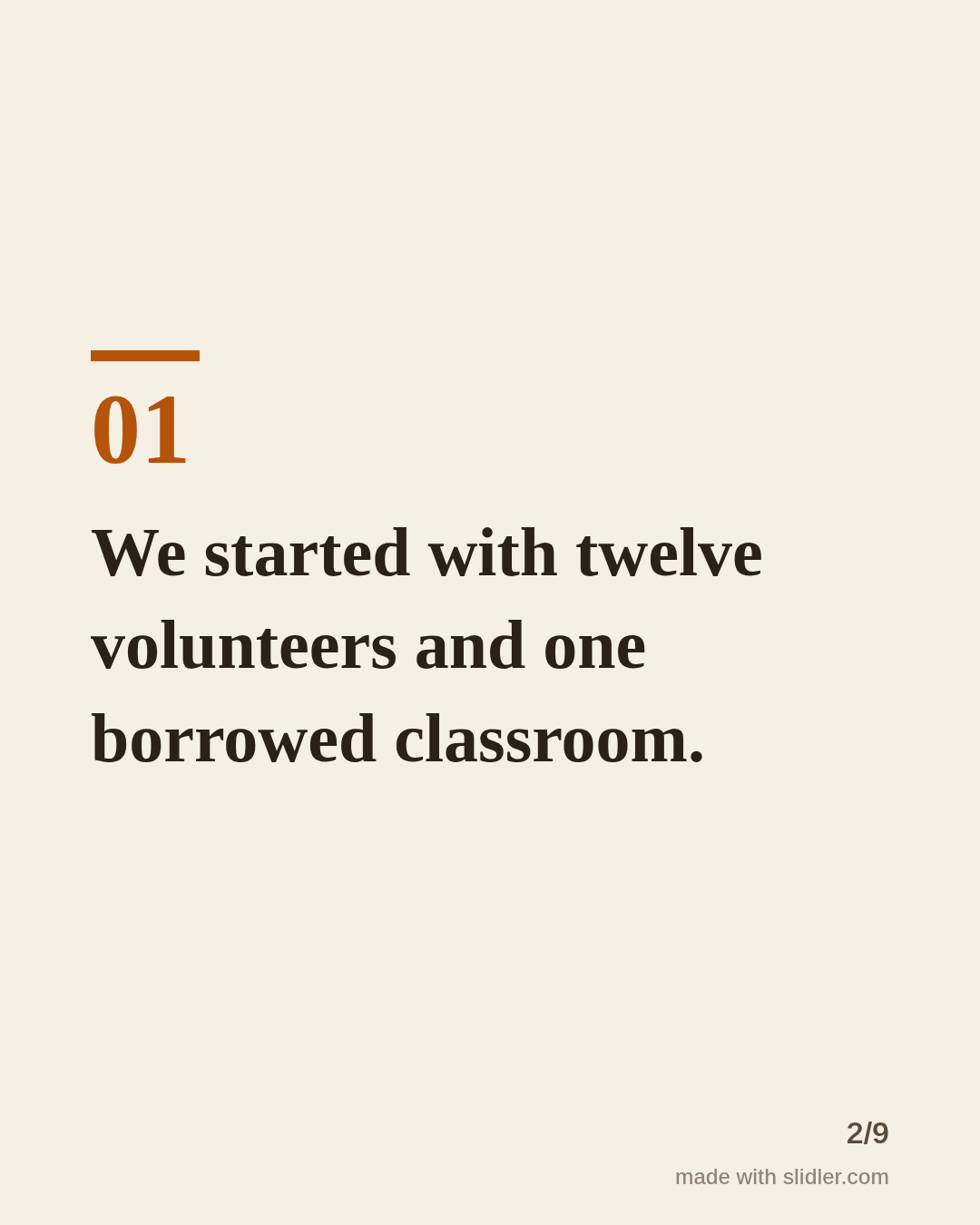
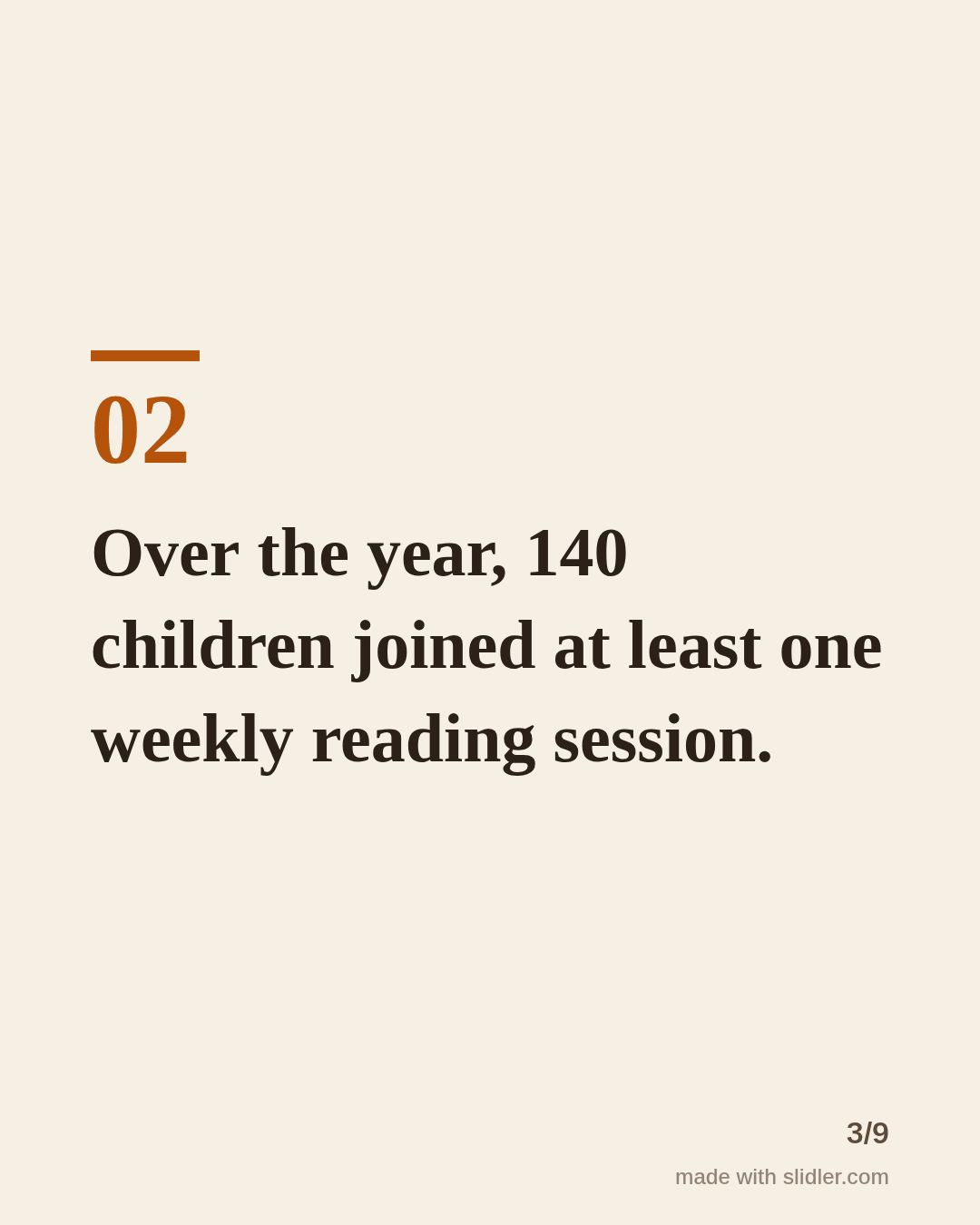
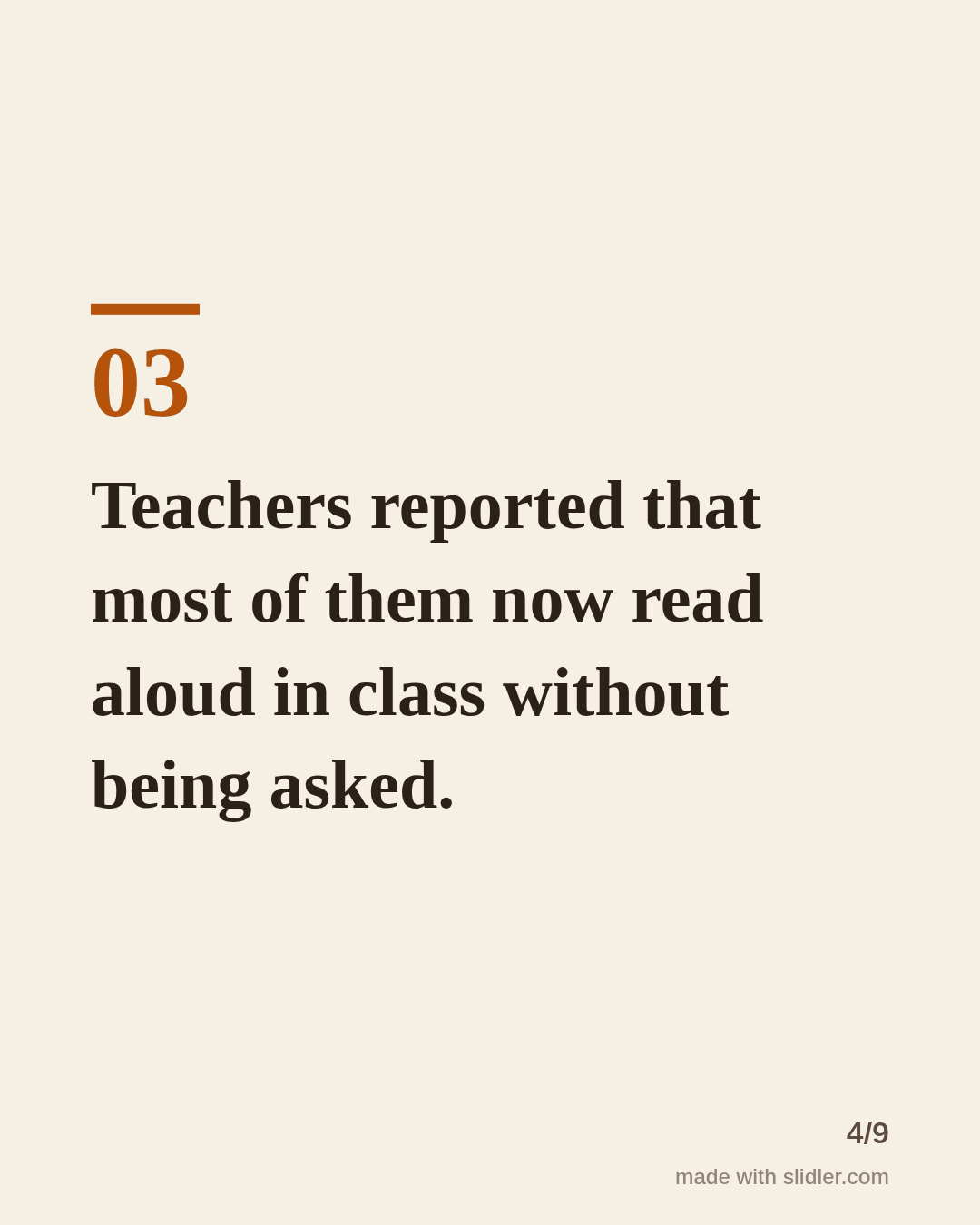
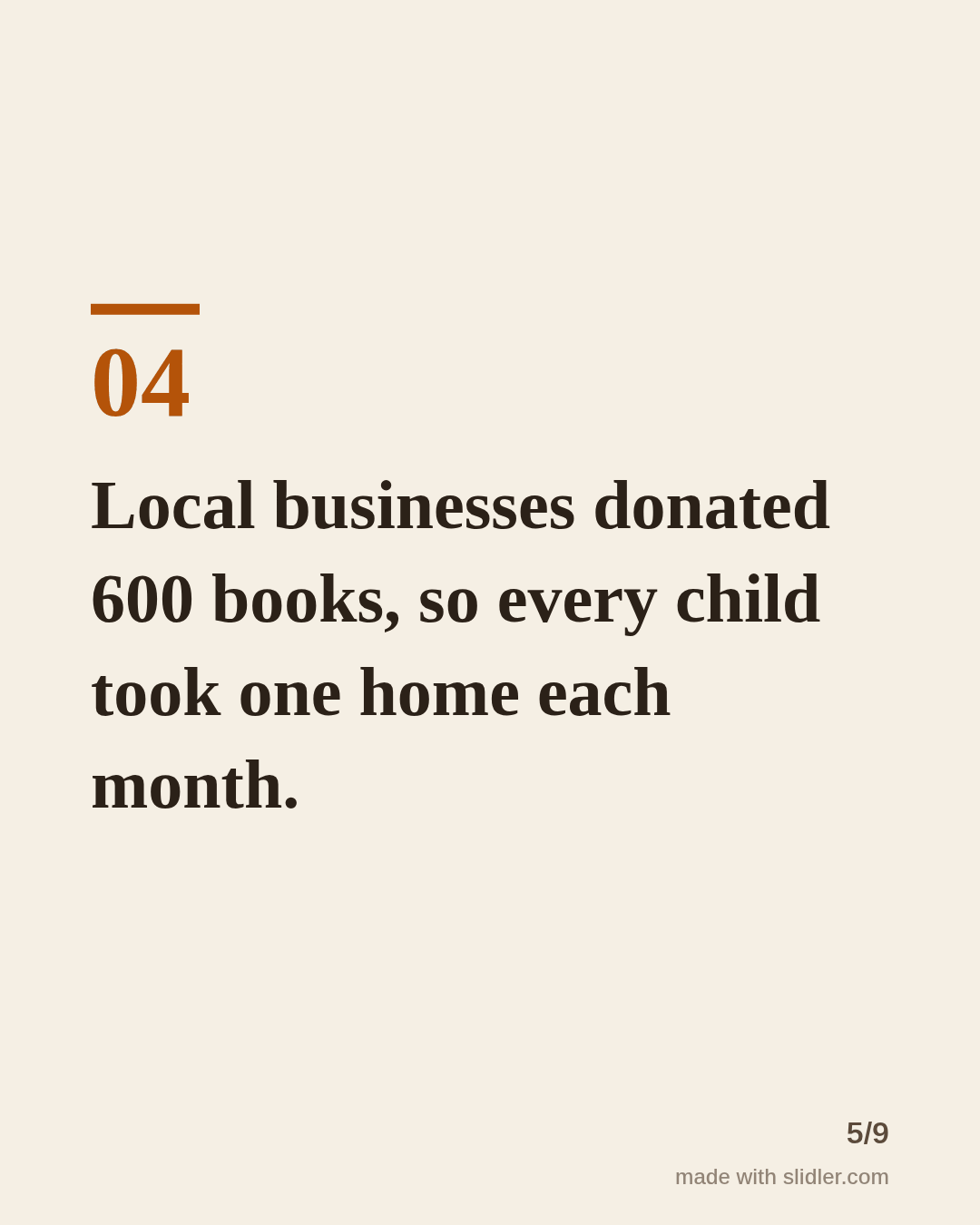
How to use this template
- Cover: a time frame and the change you made.
- One fact or moment per slide, with real numbers.
- Include one honest challenge; it makes the success believable.
- End with one clear ask: volunteer, donate or share.
Tip: Use numbers you can stand behind and name partners only with their permission.
Edit the sample and make your carousel (free, no sign-up)
The first line becomes the cover; each sentence becomes a slide. Replace the sample with your own words.
FAQ
What should a nonprofit post on LinkedIn?
Impact updates, volunteer stories, behind-the-scenes posts and clear asks for help.
How do I turn an annual report into a carousel?
Upload the PDF or paste the key results into Slidler and keep the strongest six to eight facts.
Is this template free?
Yes. Slidler is free and needs no account. Free exports carry a small “made with slidler.com” mark.
What size are the slides?
1080×1350 pixels (4:5 portrait), the size LinkedIn and Instagram show largest in the feed. LinkedIn gets a PDF; Instagram gets a zip of PNGs.
Related templates
- Milestone LinkedIn carousel template
- Event LinkedIn carousel template
- Customer testimonial LinkedIn carousel template
- LinkedIn carousel template for founders
- LinkedIn carousel template for recruiters
Start from your own content instead: PDF to carousel · Turn a newsletter issue into a LinkedIn carousel · All carousel templates