Event LinkedIn carousel template
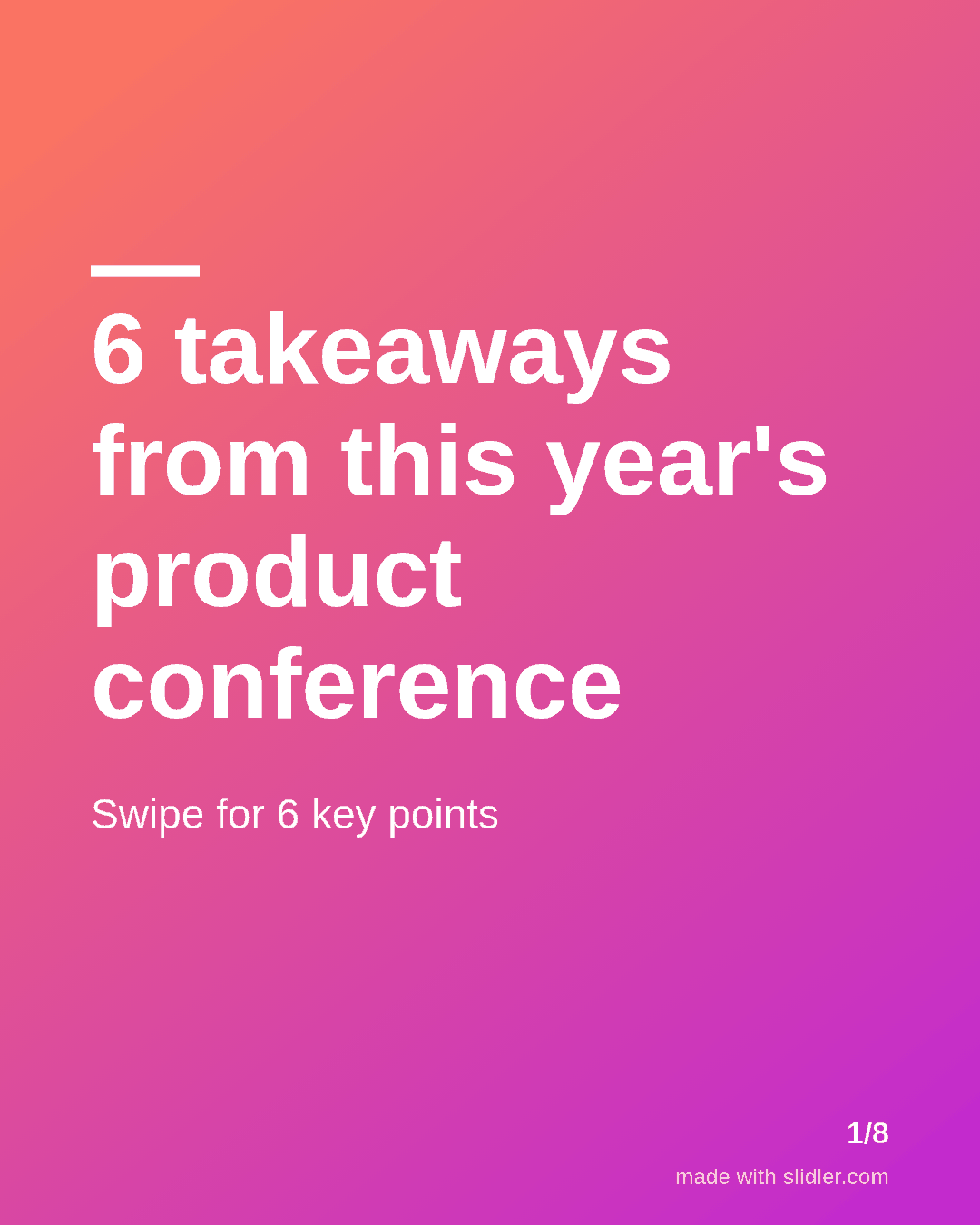
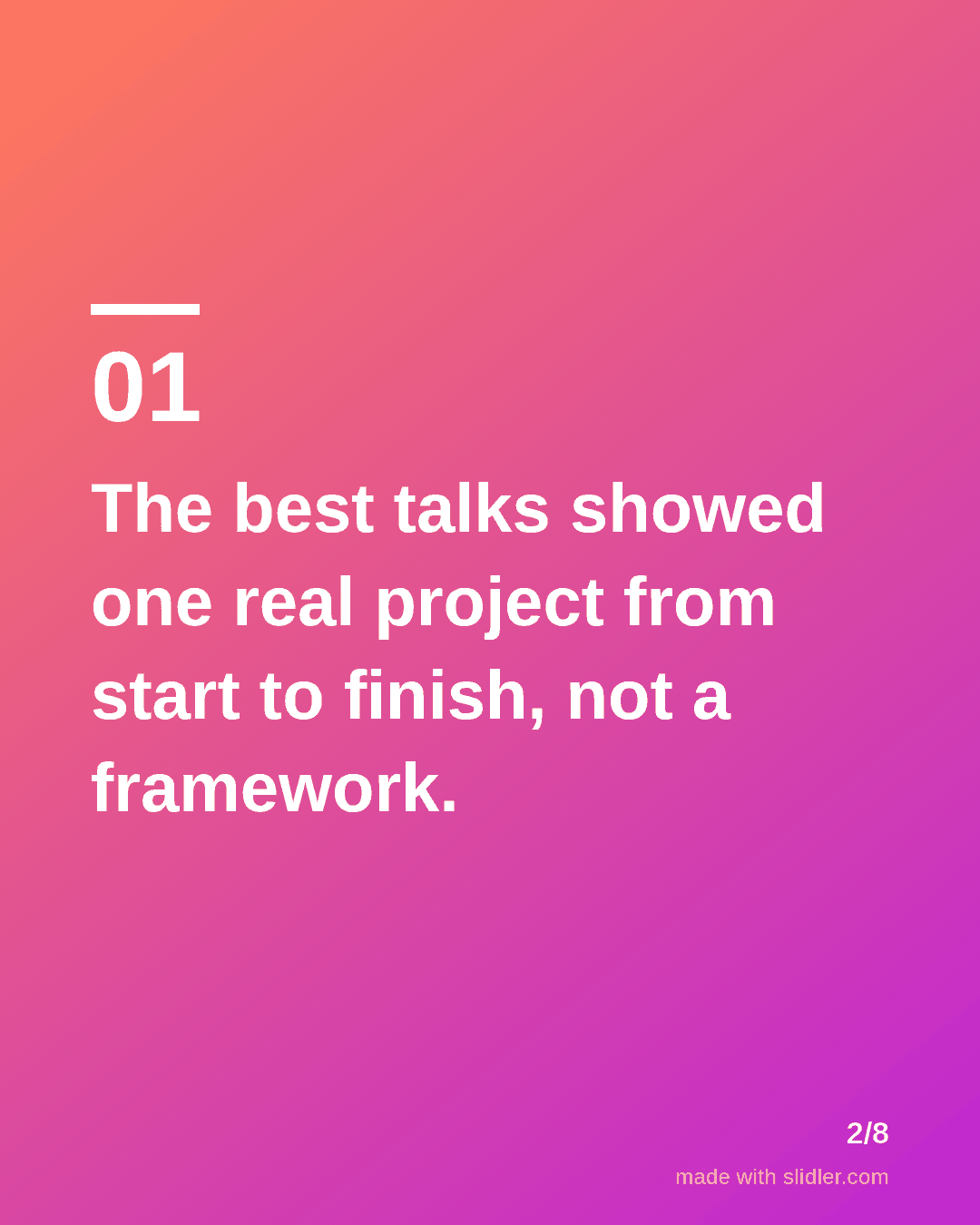
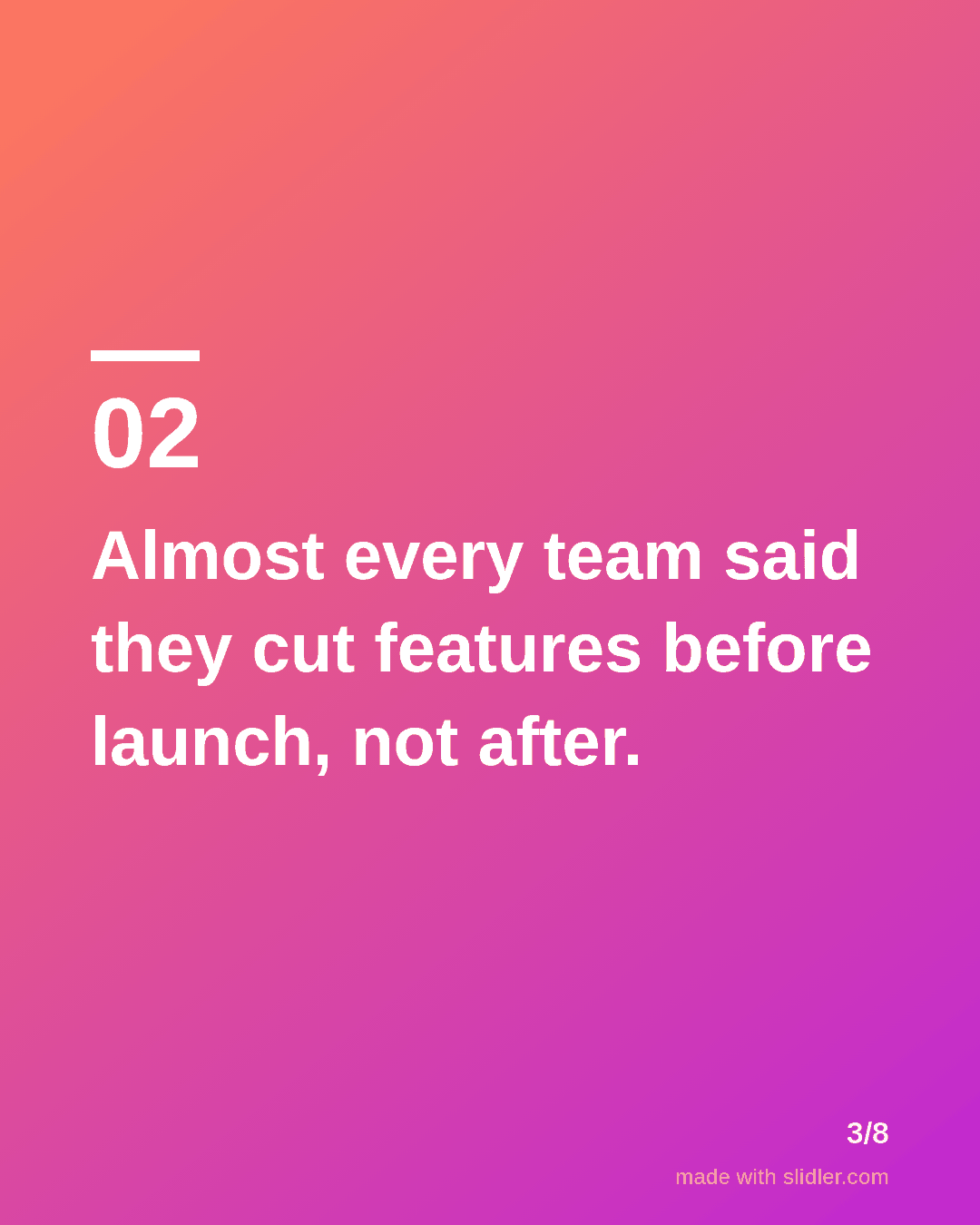
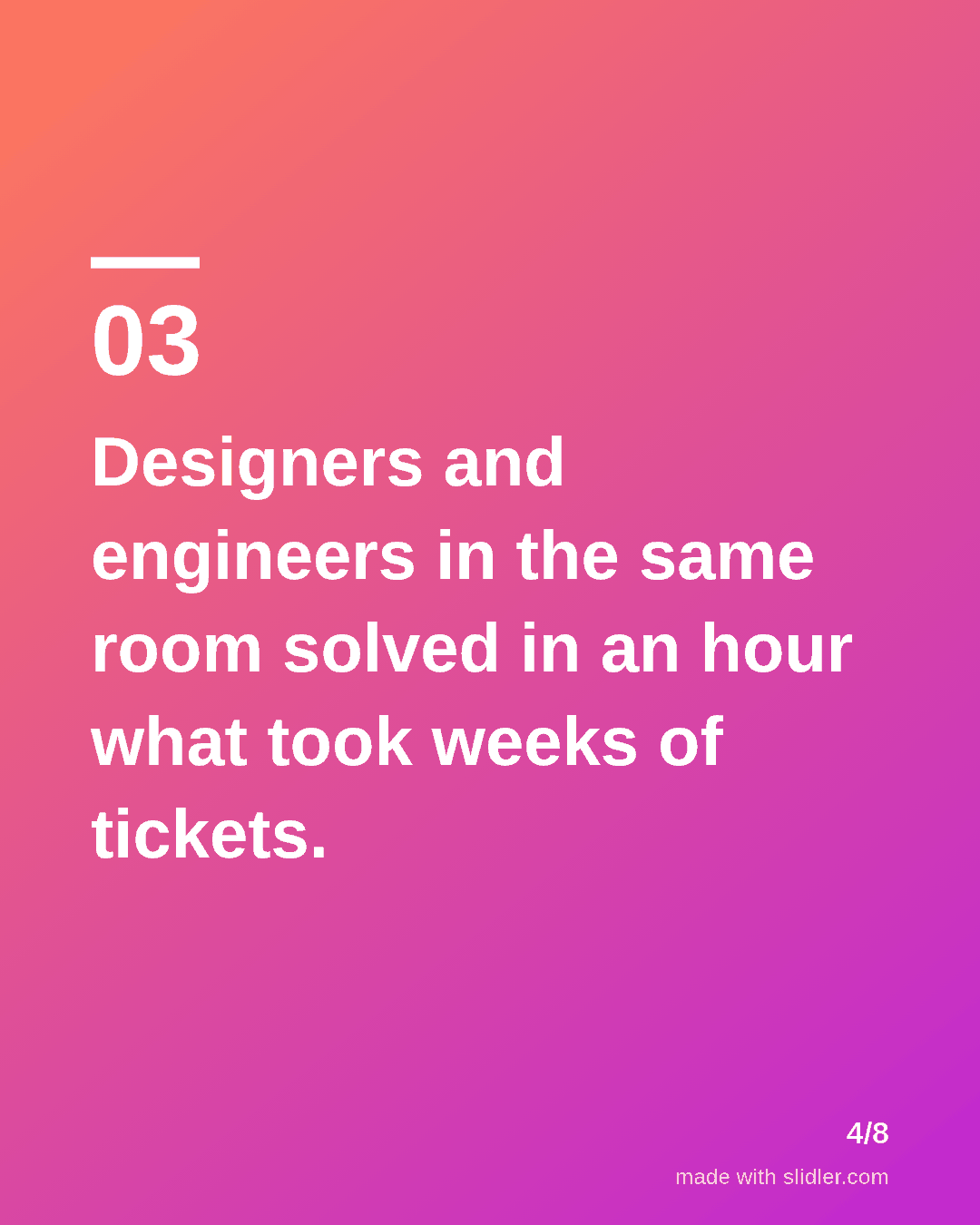
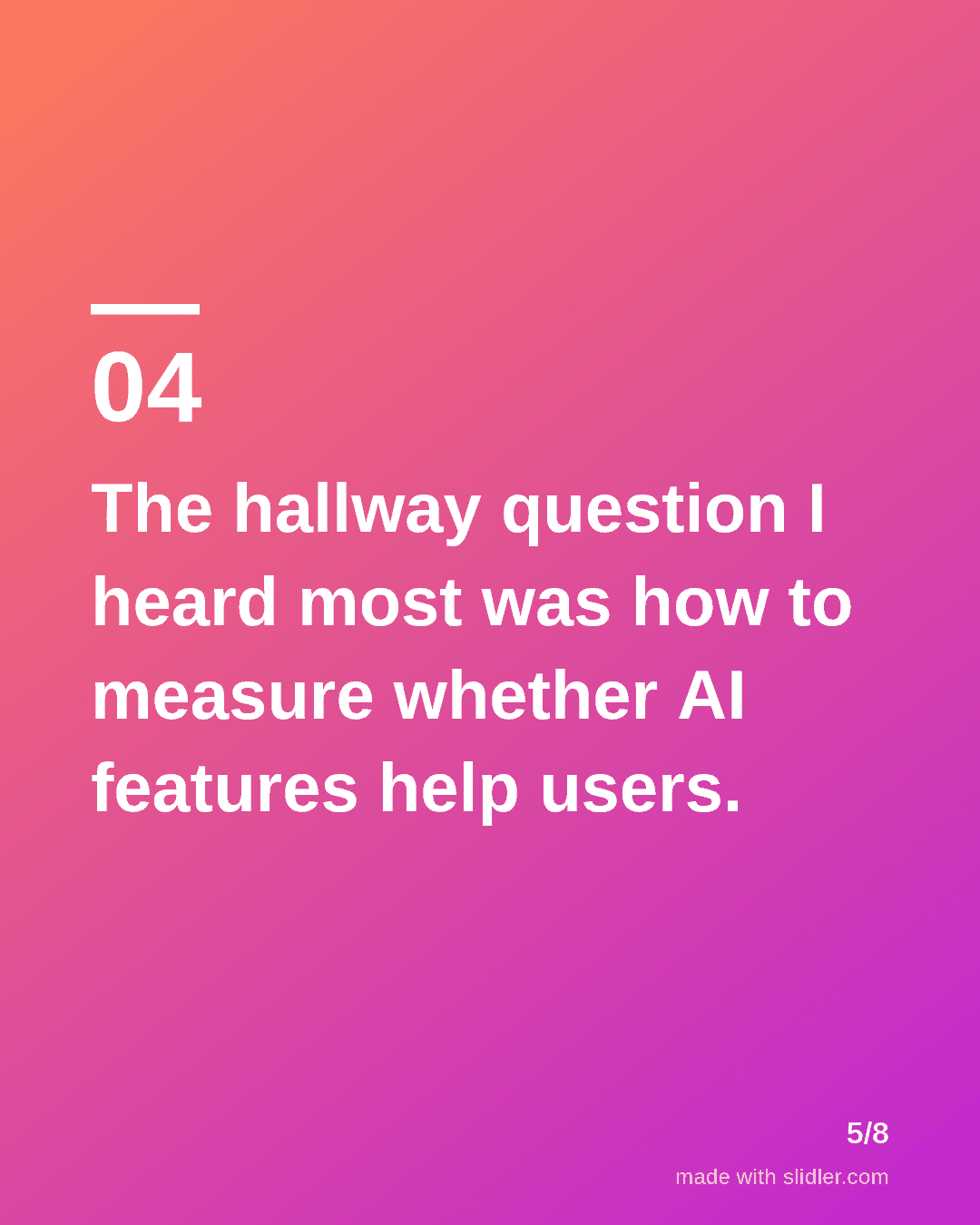
Event posts work before the event (why come) and after it (what we learned). This template is the after version: key takeaways for people who couldn't attend. Below is a sample carousel Slidler made from the text in the editor; change the text to yours and make your own in under a minute.
Sample carousel (5 of 8 slides)
How to use this template
- Cover: event name plus number of takeaways.
- One takeaway per slide, in your words.
- Credit speakers in the post text by tagging them.
- End with what you will do differently.
Tip: Post within a day or two of the event, while attendees are still searching the event hashtag.
Edit the sample and make your carousel (free, no sign-up)
The first line becomes the cover; each sentence becomes a slide. Replace the sample with your own words.
FAQ
What do I post before an event?
Who should come, what they will learn, the date and where to register. After the event, post takeaways like this template.
Can I turn a recorded talk into a carousel?
Yes. Paste the YouTube link into the YouTube tab and Slidler picks key points from the captions.
Is this template free?
Yes. Slidler is free and needs no account. Free exports carry a small “made with slidler.com” mark.
What size are the slides?
1080×1350 pixels (4:5 portrait), the size LinkedIn and Instagram show largest in the feed. LinkedIn gets a PDF; Instagram gets a zip of PNGs.
Related templates
- Webinar LinkedIn carousel template
- Announcement LinkedIn carousel template
- Tips list LinkedIn carousel template
- Product launch LinkedIn carousel template
- Case study LinkedIn carousel template
Start from your own content instead: YouTube video to carousel · Turn a TED talk into a LinkedIn carousel · All carousel templates