Mistakes to avoid LinkedIn carousel template
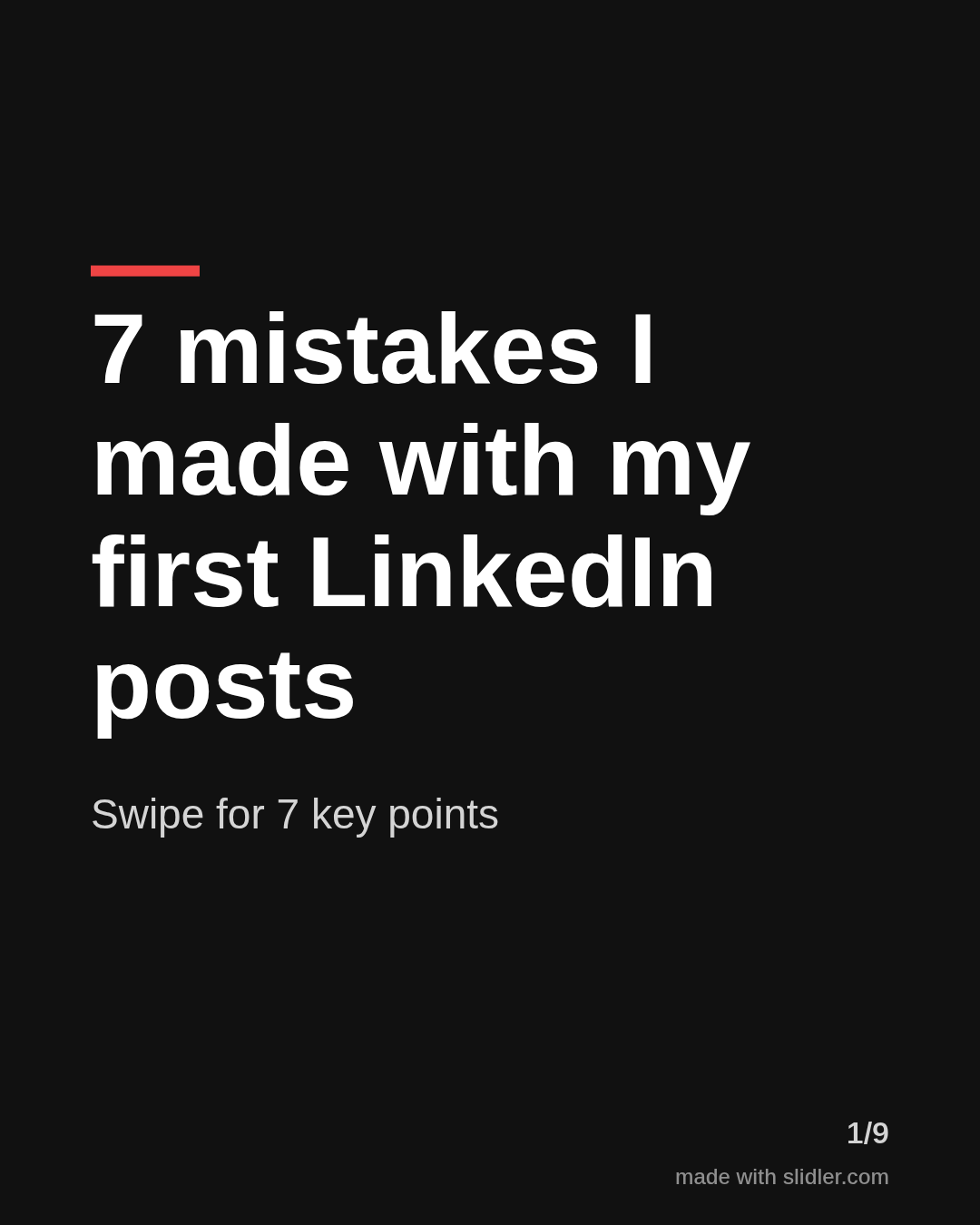
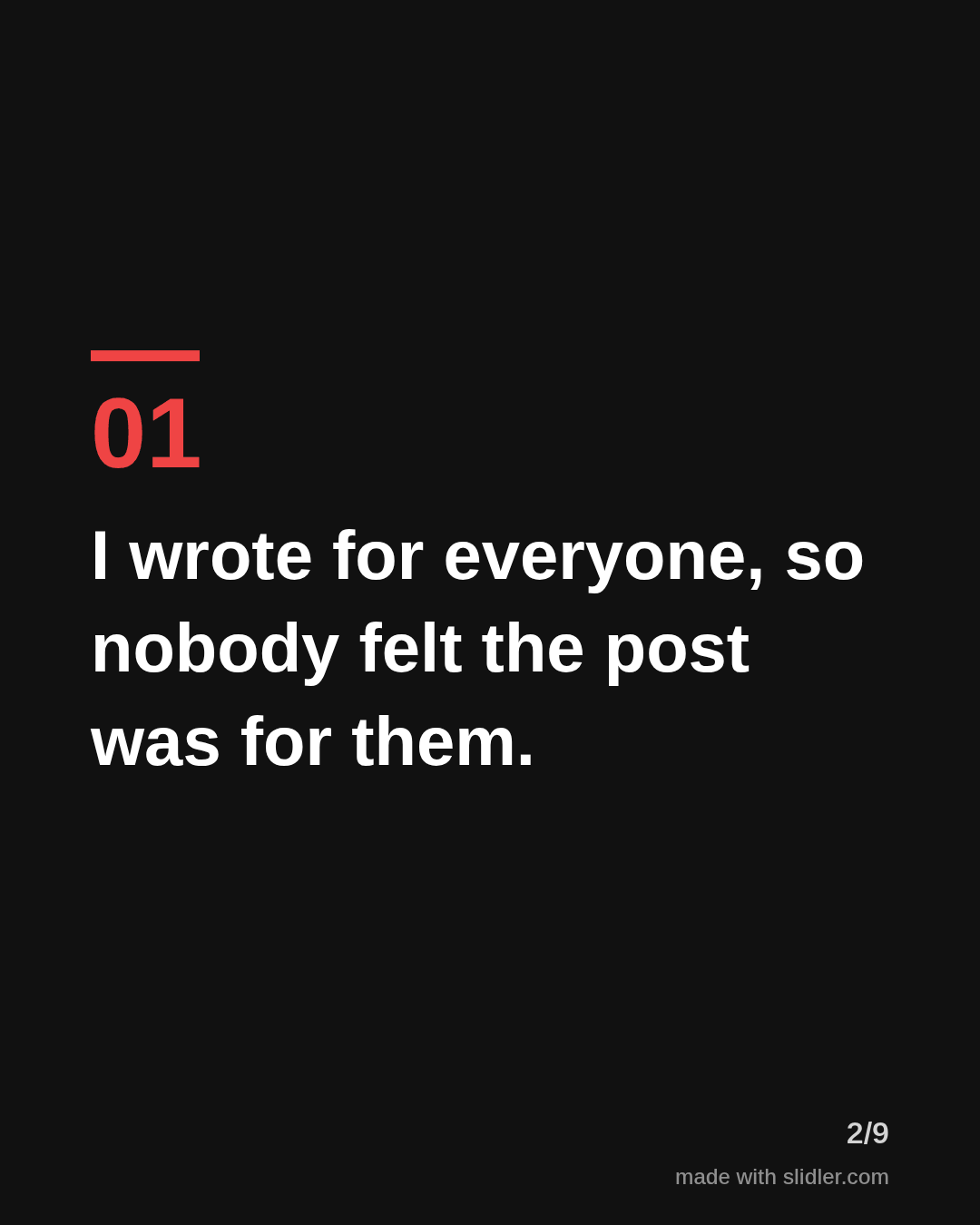
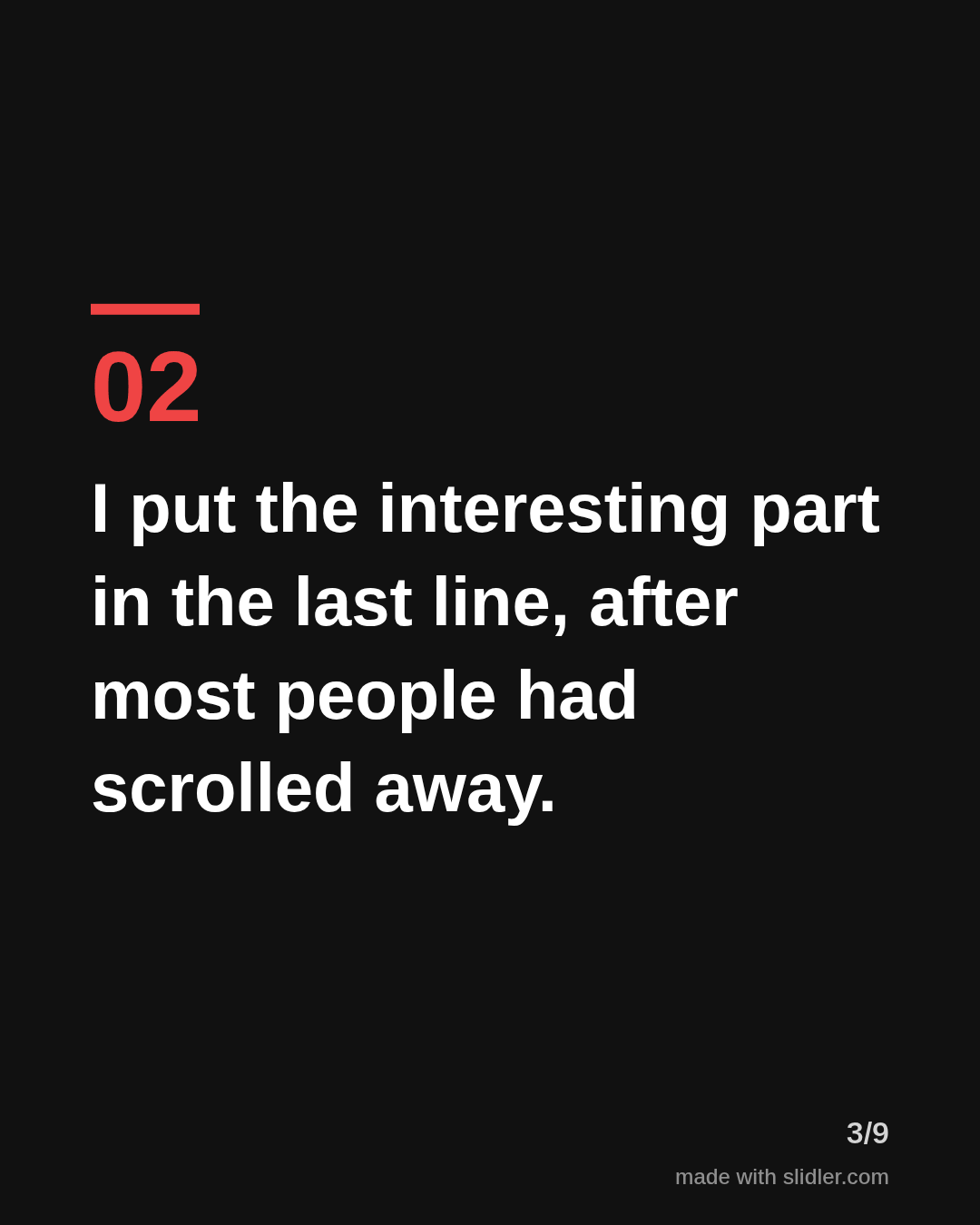
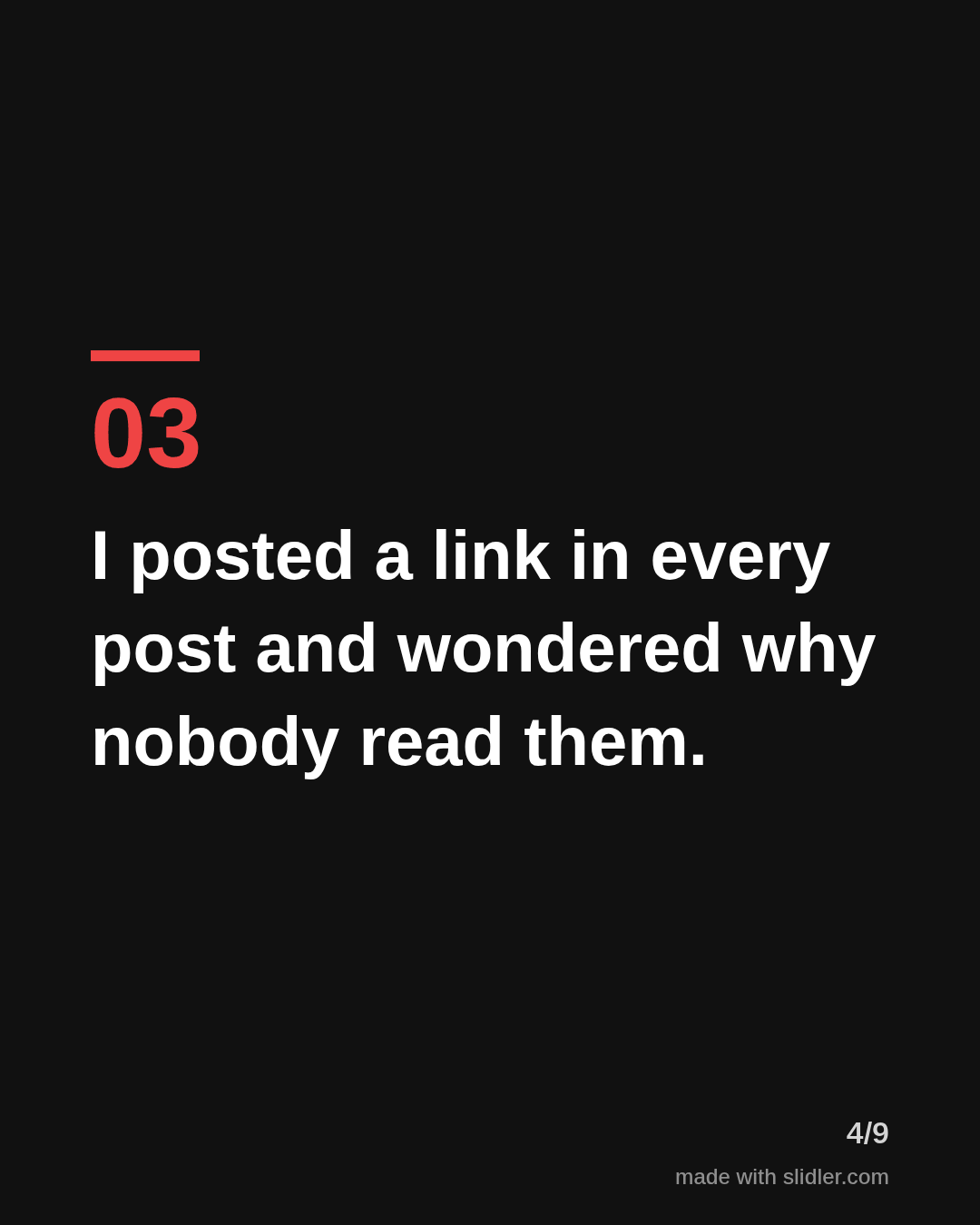
Mistake lists are one of the most-read carousel formats, because nobody wants to make the same error twice. This template keeps each mistake short and fixable. Below is a sample carousel Slidler made from the text in the editor; change the text to yours and make your own in under a minute.
Sample carousel (5 of 9 slides)
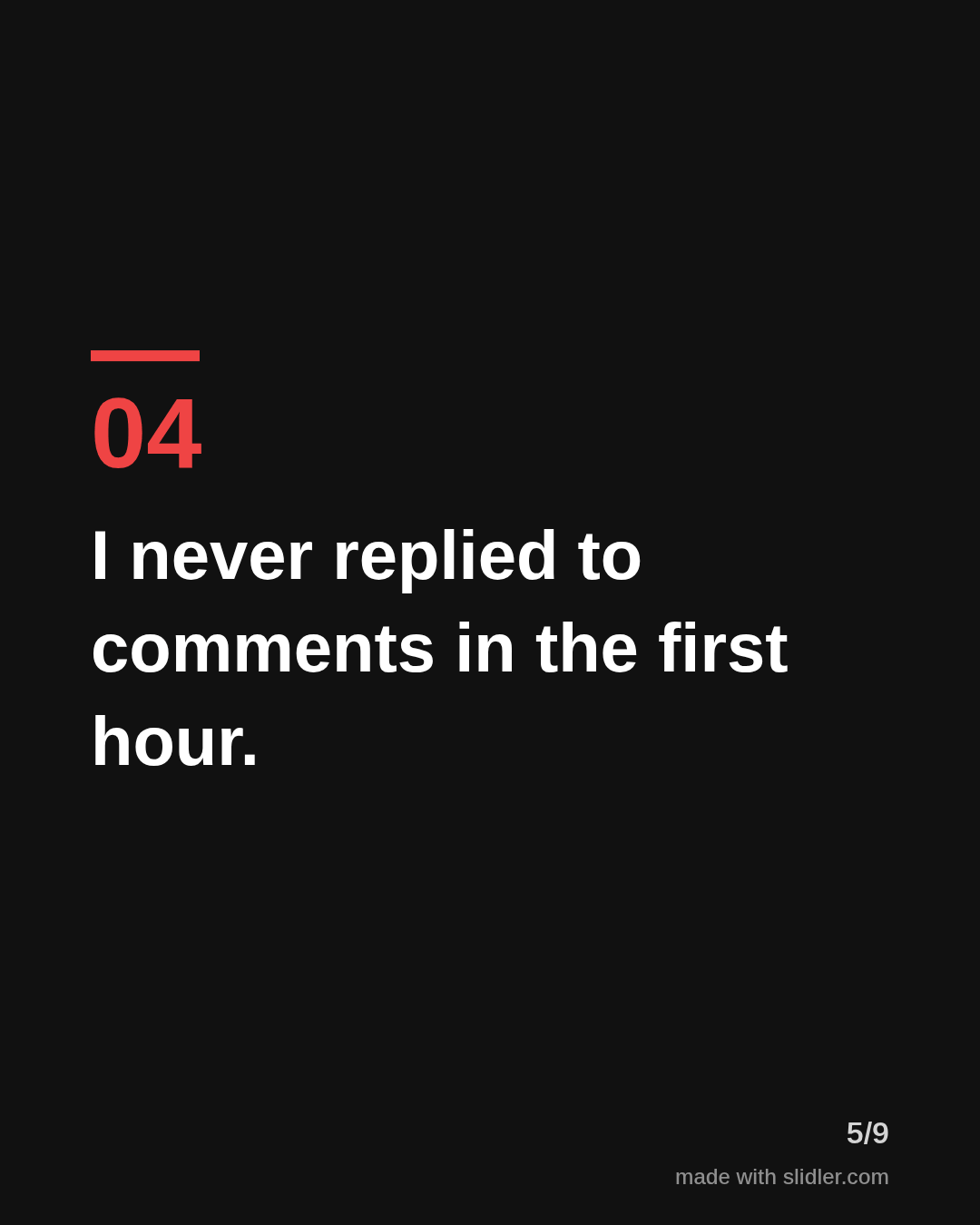
How to use this template
- Cover: a number, the word mistakes and a context.
- One mistake per slide, written in the first person.
- Add what you do now in the same sentence if it fits.
- Ask readers which mistake they still make.
Tip: Owning the mistake yourself reads as honest; pointing at others reads as a lecture.
Edit the sample and make your carousel (free, no sign-up)
The first line becomes the cover; each sentence becomes a slide. Replace the sample with your own words.
FAQ
Why do mistake carousels perform well?
They promise to save the reader time or embarrassment, and each slide is short enough to scan.
How many mistakes should I include?
Six to eight works well: enough to feel complete, short enough that people finish it.
Is this template free?
Yes. Slidler is free and needs no account. Free exports carry a small “made with slidler.com” mark.
What size are the slides?
1080×1350 pixels (4:5 portrait), the size LinkedIn and Instagram show largest in the feed. LinkedIn gets a PDF; Instagram gets a zip of PNGs.
Related templates
- Tips list LinkedIn carousel template
- Myths vs facts LinkedIn carousel template
- LinkedIn carousel template for job seekers
- Product launch LinkedIn carousel template
- Case study LinkedIn carousel template
Start from your own content instead: Text to carousel · Turn a LinkedIn text post into a carousel · All carousel templates