Tips list LinkedIn carousel template
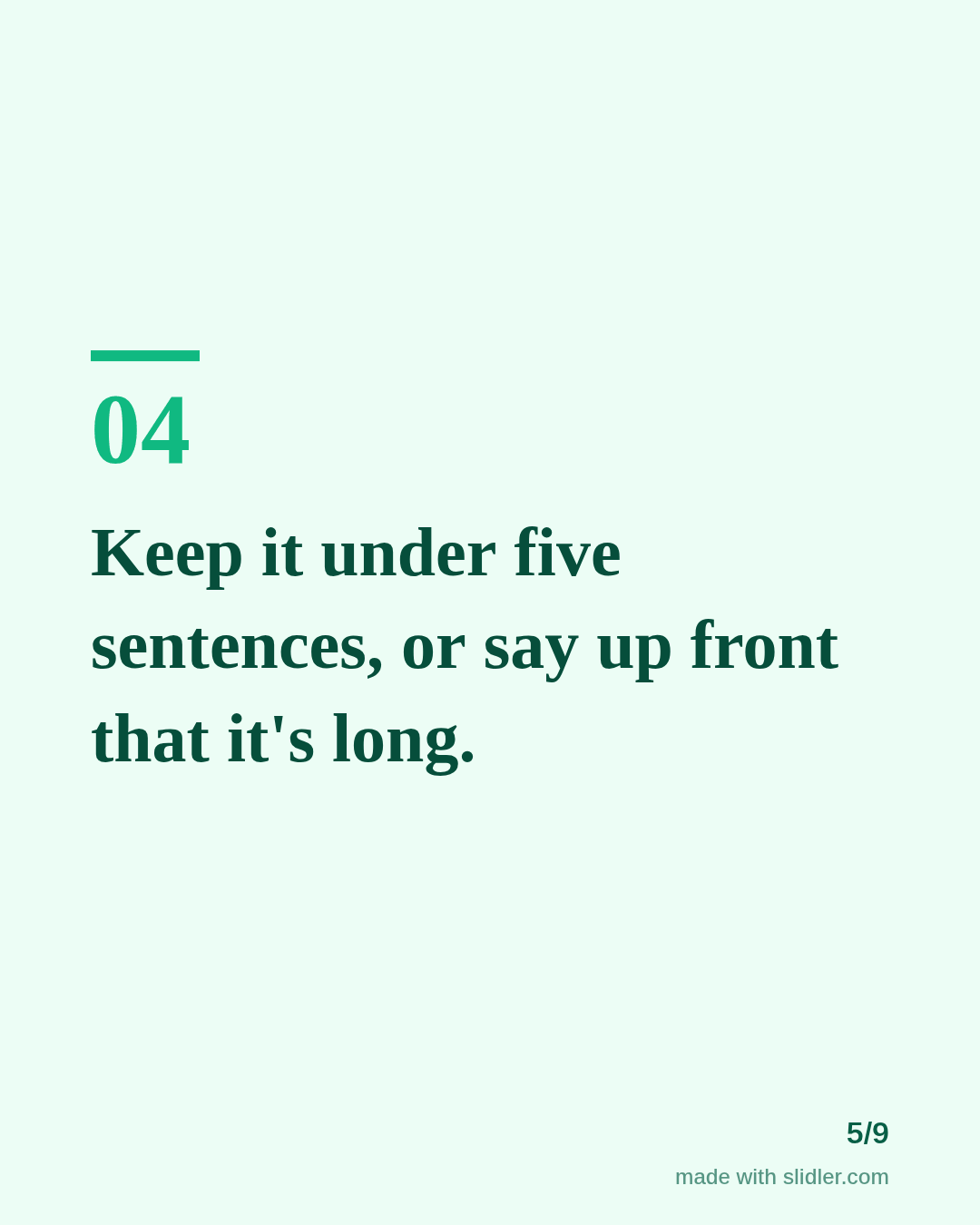
A tips list is the simplest carousel and one of the most saved. This template shows how to write tips that are specific enough to act on. Below is a sample carousel Slidler made from the text in the editor; change the text to yours and make your own in under a minute.
Sample carousel (5 of 9 slides)
How to use this template
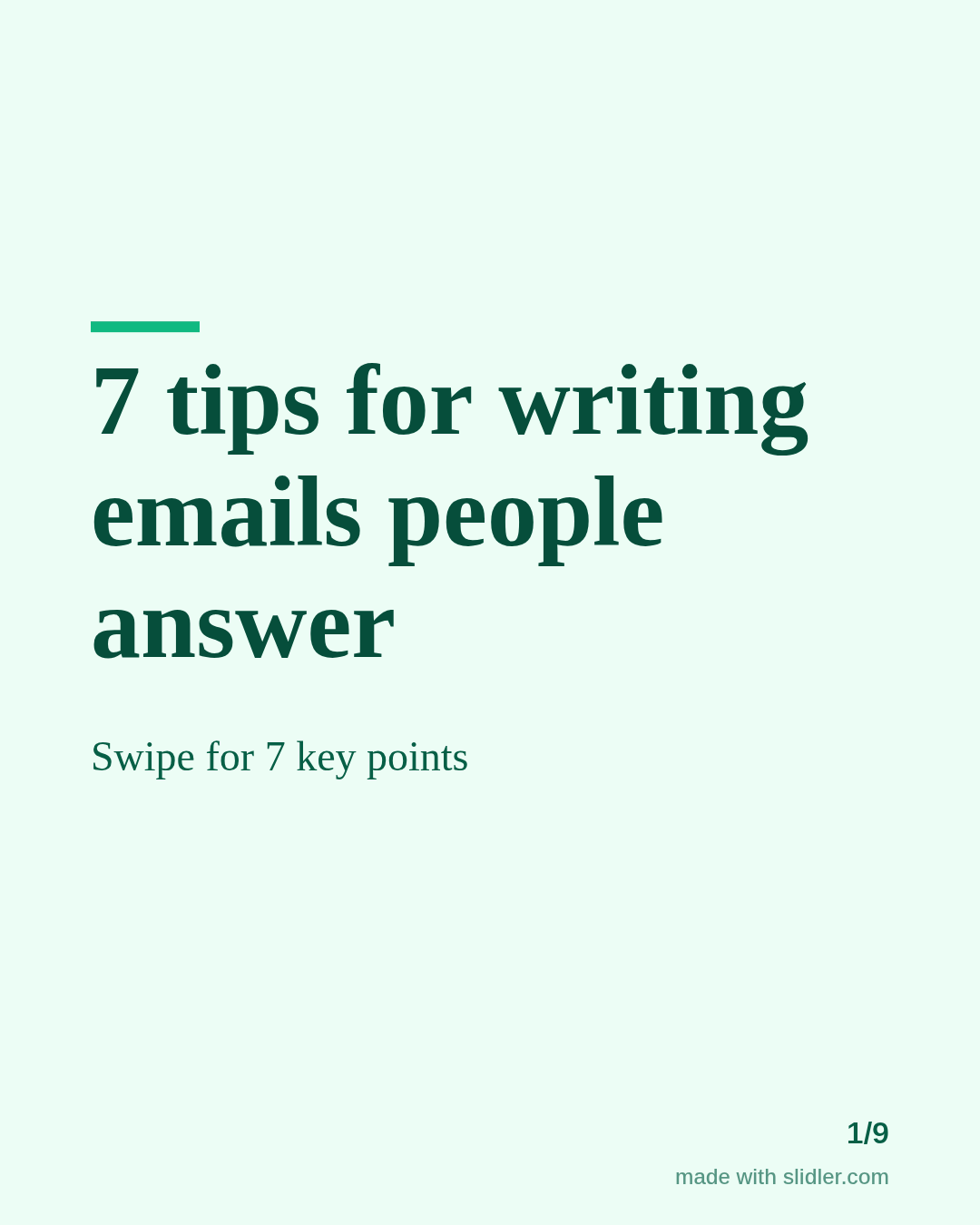
- Cover: number plus outcome ("7 tips for emails people answer").
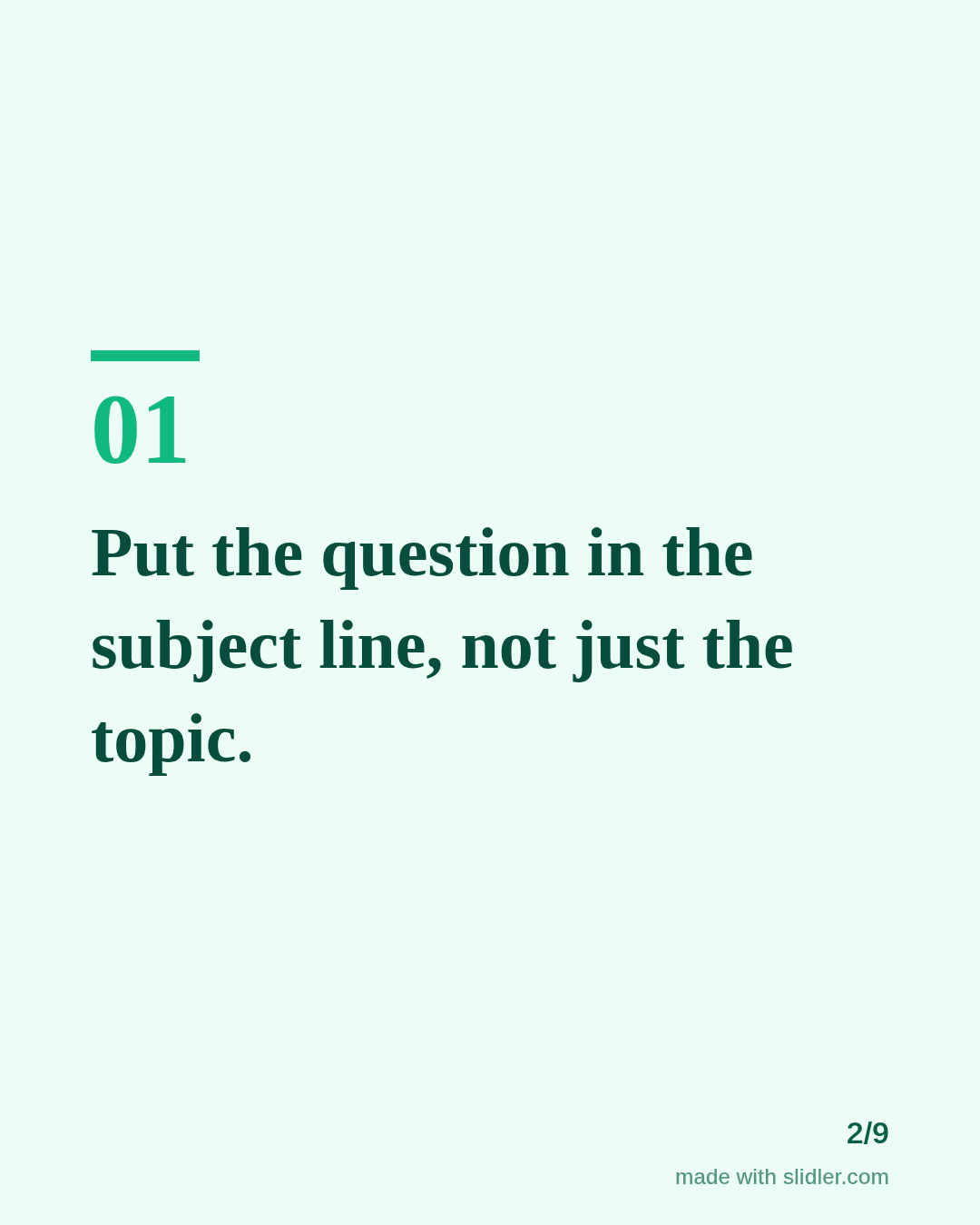
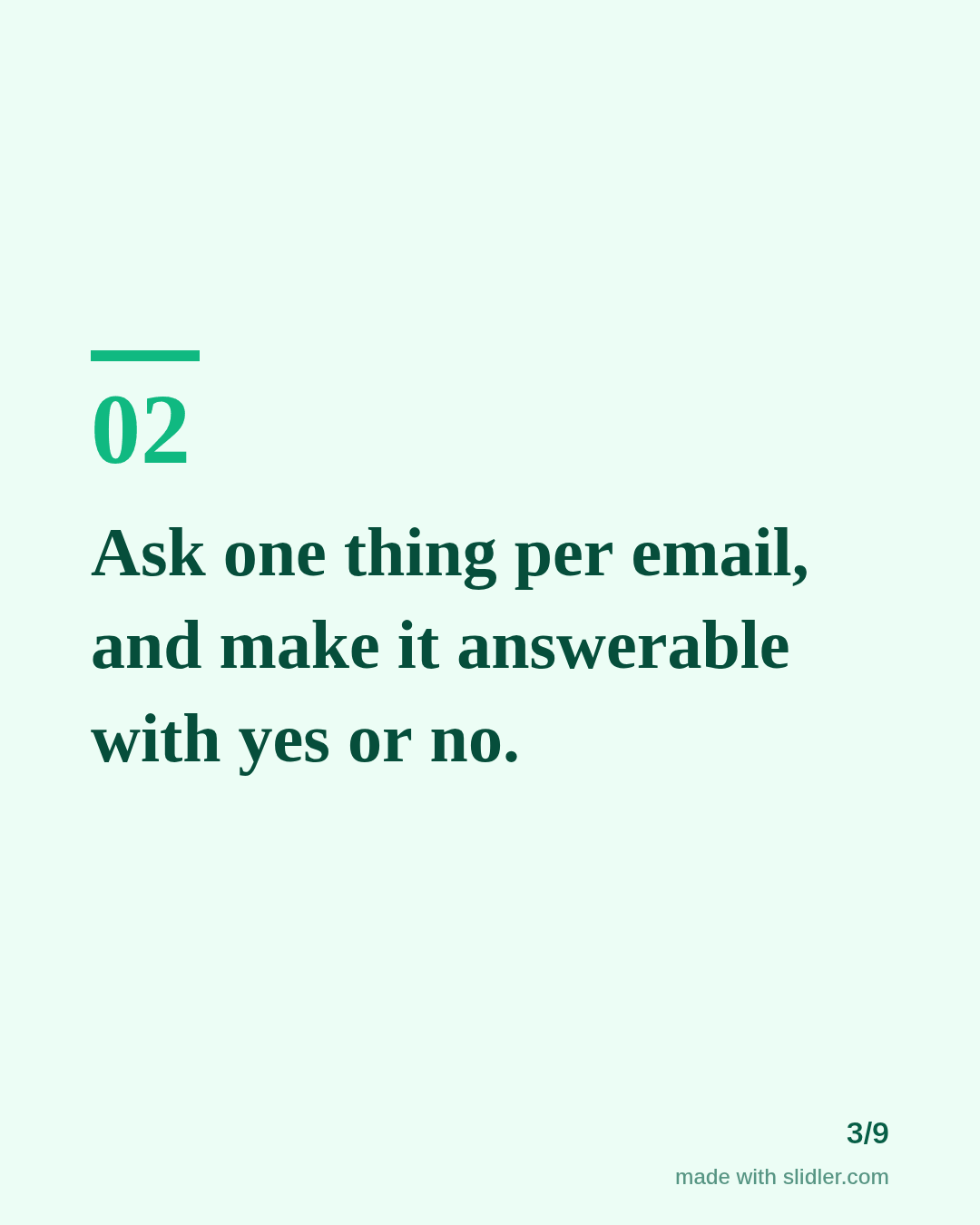
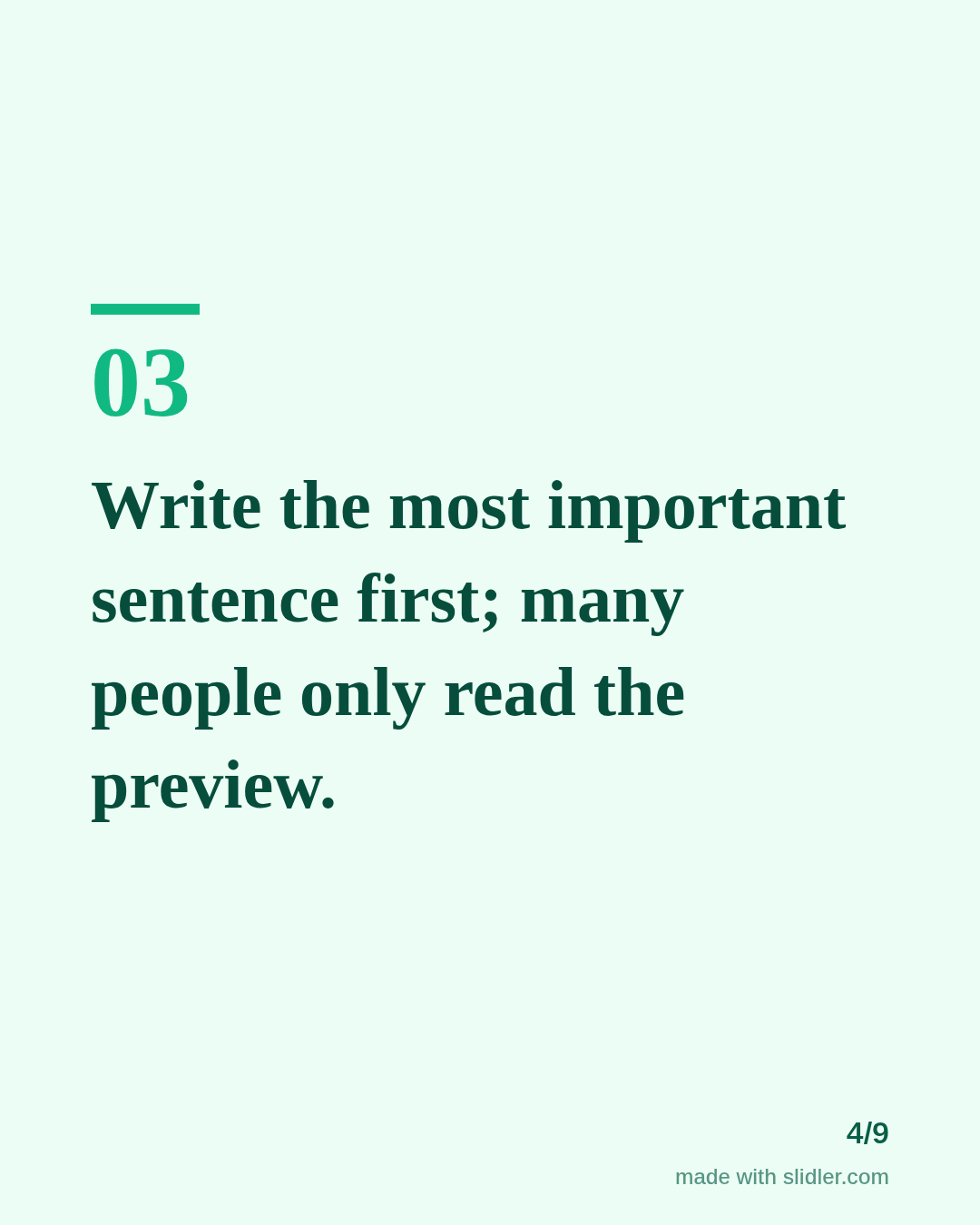
- One tip per slide, starting with a verb.
- Specific beats clever: "under five sentences" not "keep it short".
- Close with "Which tip would you add?"
Tip: Write each tip as an action someone can do in the next hour; vague tips don't get saved.
Edit the sample and make your carousel (free, no sign-up)
The first line becomes the cover; each sentence becomes a slide. Replace the sample with your own words.
FAQ
How many tips should a carousel have?
Five to nine works well. Slidler supports 6 to 10 slides including the cover and closing slide.
Can I turn a blog post of tips into a carousel?
Yes. Use the article page and paste the post's link.
Is this template free?
Yes. Slidler is free and needs no account. Free exports carry a small “made with slidler.com” mark.
What size are the slides?
1080×1350 pixels (4:5 portrait), the size LinkedIn and Instagram show largest in the feed. LinkedIn gets a PDF; Instagram gets a zip of PNGs.
Related templates
- How-to guide LinkedIn carousel template
- Checklist LinkedIn carousel template
- Myths vs facts LinkedIn carousel template
- Product launch LinkedIn carousel template
- Case study LinkedIn carousel template
Start from your own content instead: Article to carousel · Turn a blog post into an Instagram carousel · All carousel templates