How-to guide LinkedIn carousel template
Step-by-step guides suit carousels because every swipe is the next step. This template keeps one step per slide in order, with what the reader should see when it works. Below is a sample carousel Slidler made from the text in the editor; change the text to yours and make your own in under a minute.
Sample carousel (5 of 8 slides)


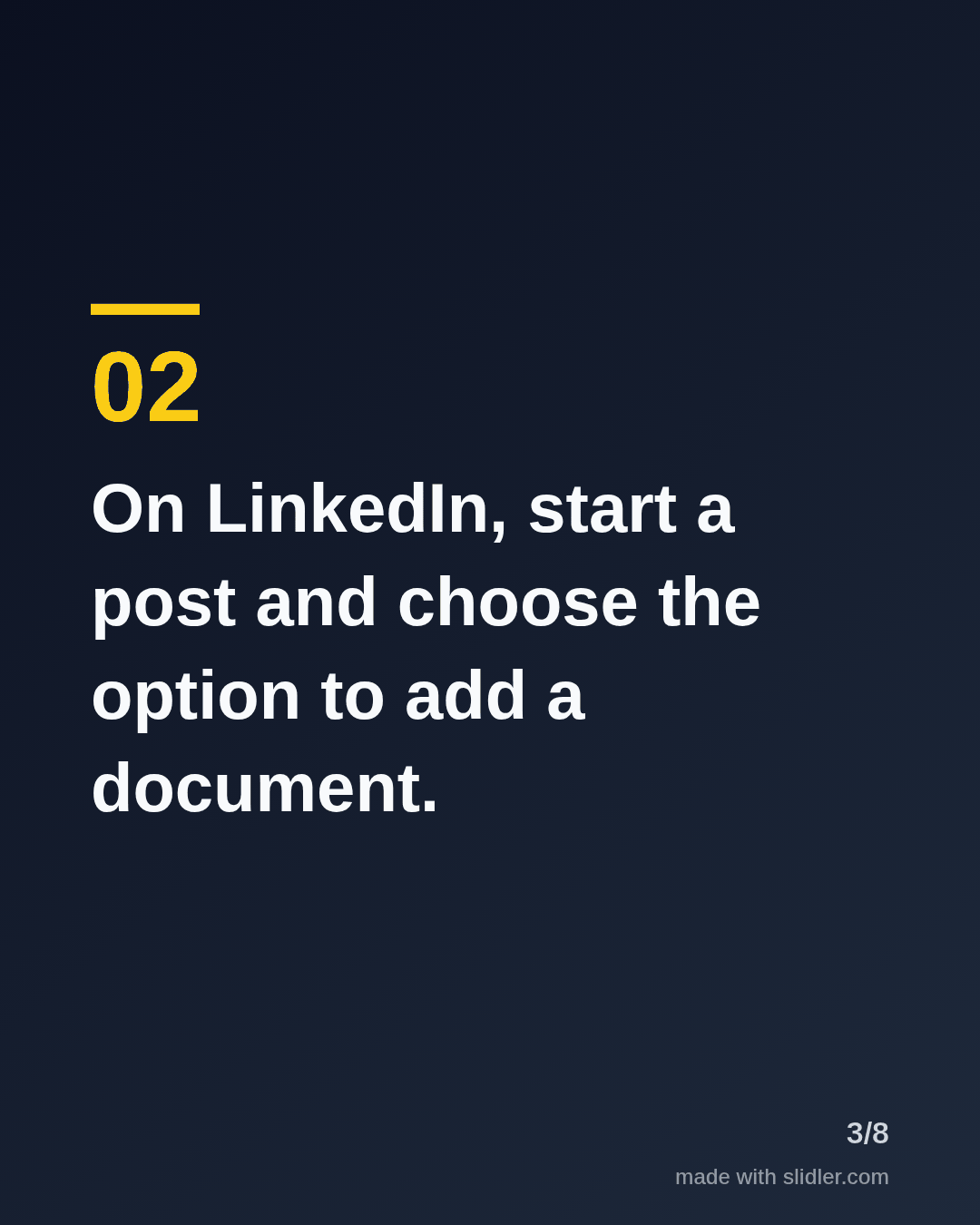
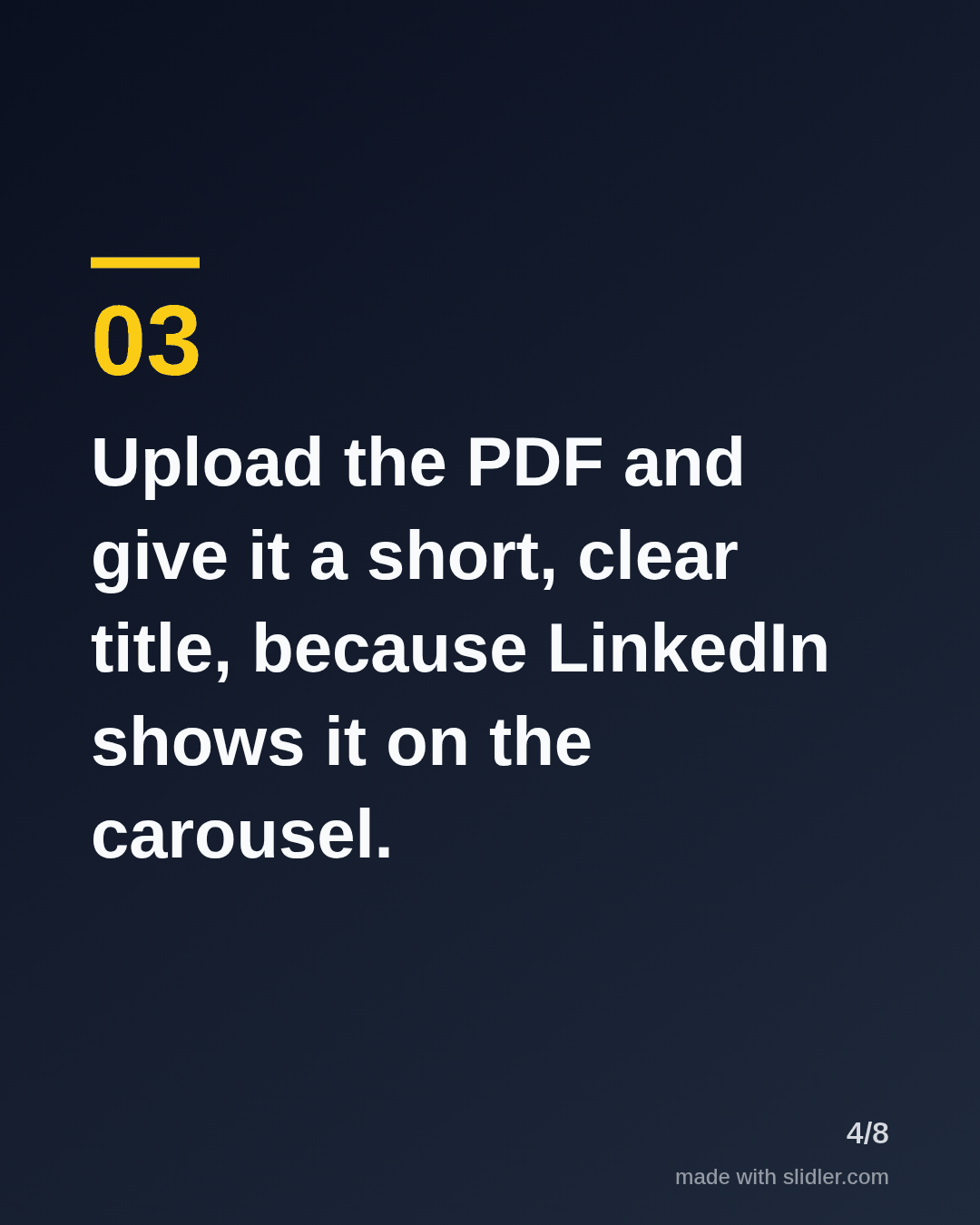
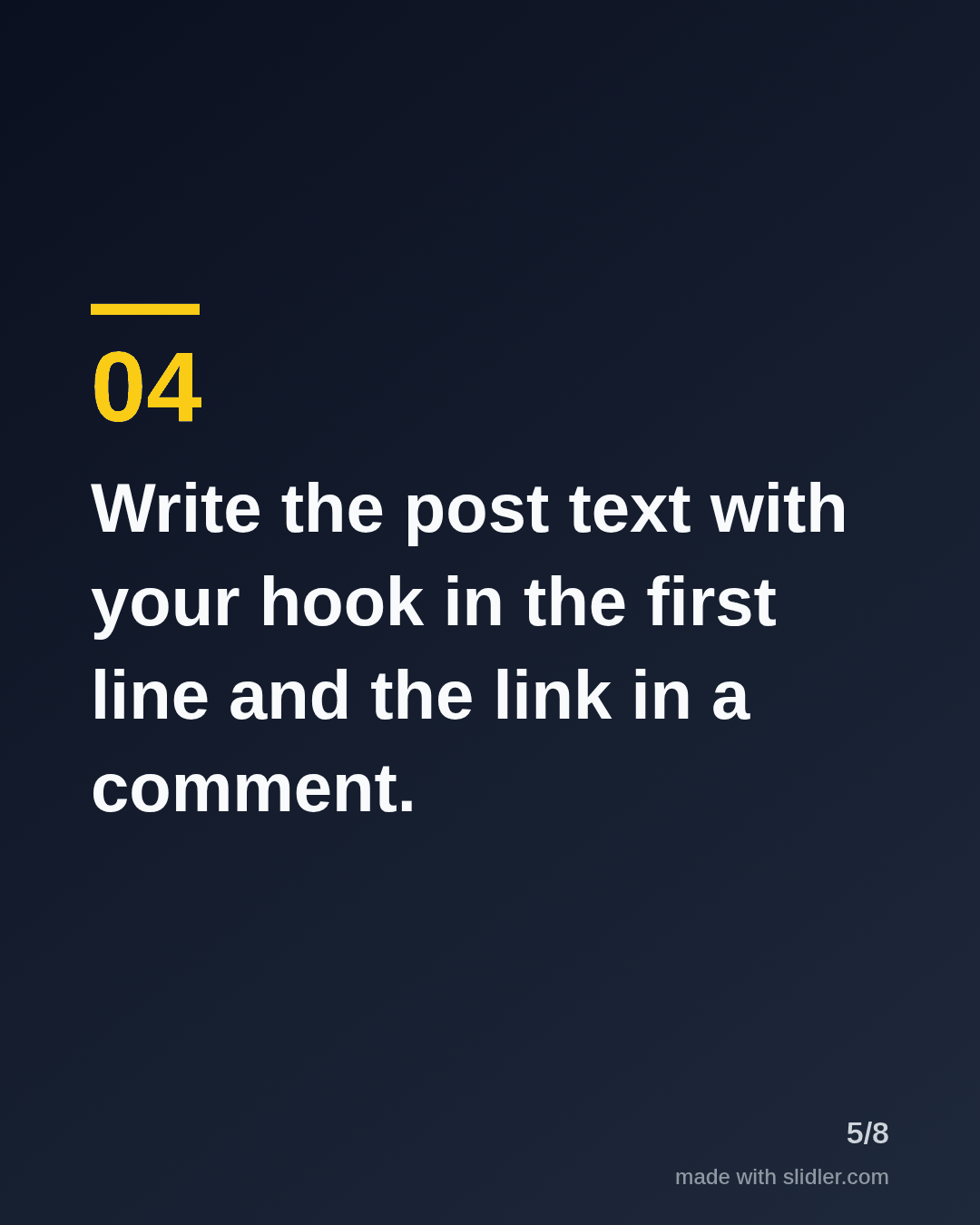
How to use this template
- Cover: "How to" plus the result, and "step by step".
- One step per slide, in order, starting with a verb.
- Add what success looks like where readers might get lost.
- End with the result or a link to a longer guide.
Tip: Test every step yourself before posting; readers follow these literally.
Edit the sample and make your carousel (free, no sign-up)
The first line becomes the cover; each sentence becomes a slide. Replace the sample with your own words.
FAQ
How do I make a step-by-step carousel?
Write each step as one sentence on its own line, paste them into Slidler and pick the number of slides. Each step becomes a numbered slide.
Where is LinkedIn's document upload?
See our guide on how to post a carousel on LinkedIn.
Is this template free?
Yes. Slidler is free and needs no account. Free exports carry a small “made with slidler.com” mark.
What size are the slides?
1080×1350 pixels (4:5 portrait), the size LinkedIn and Instagram show largest in the feed. LinkedIn gets a PDF; Instagram gets a zip of PNGs.
Related templates
- Tips list LinkedIn carousel template
- Checklist LinkedIn carousel template
- LinkedIn carousel template for software developers
- Product launch LinkedIn carousel template
- Case study LinkedIn carousel template
Start from your own content instead: How to post a carousel on LinkedIn · Text to carousel · All carousel templates