Statistics LinkedIn carousel template
Data carousels get shared when every slide has one number and what it means. This template keeps figures readable on a phone. Below is a sample carousel Slidler made from the text in the editor; change the text to yours and make your own in under a minute.
Sample carousel (5 of 8 slides)
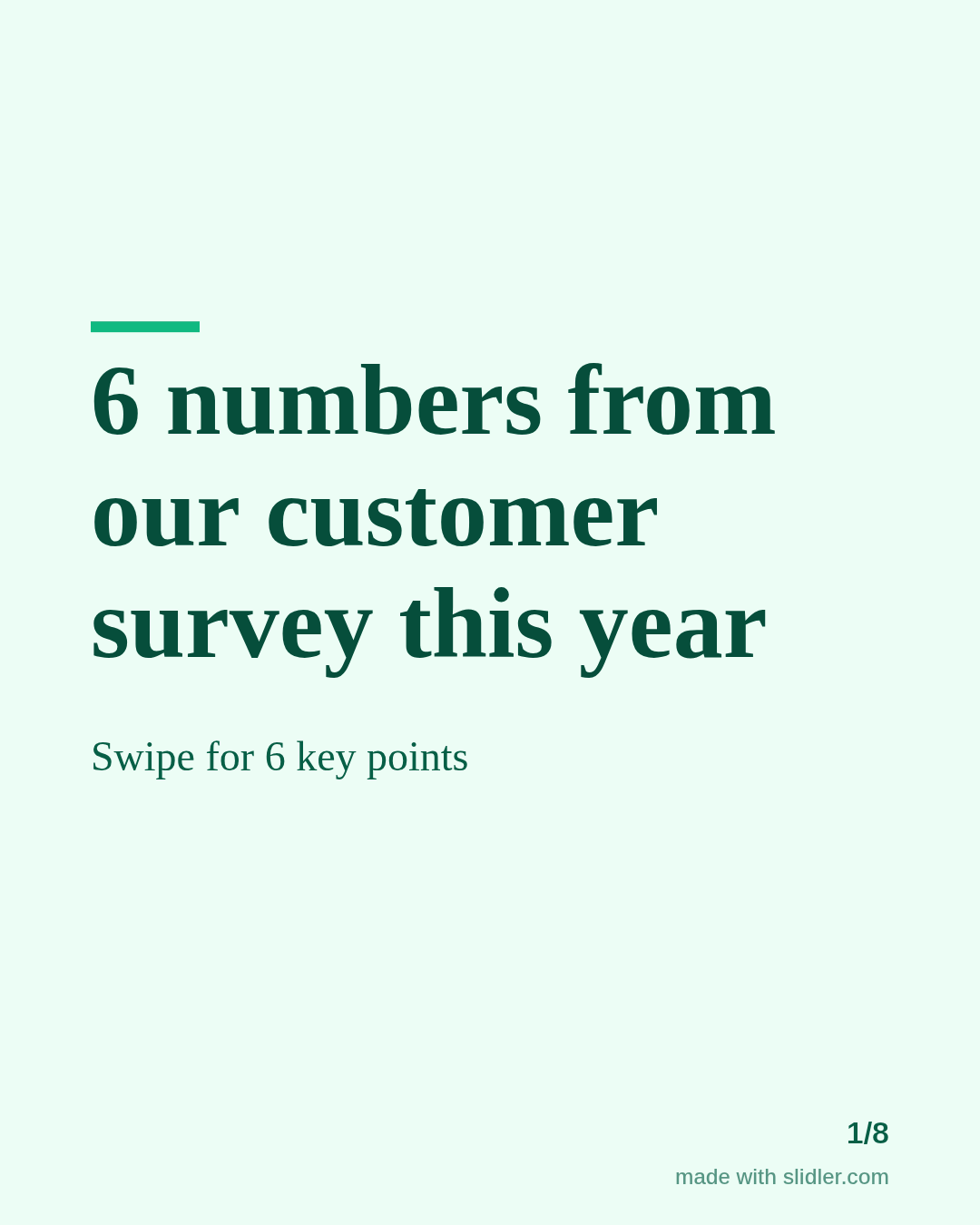
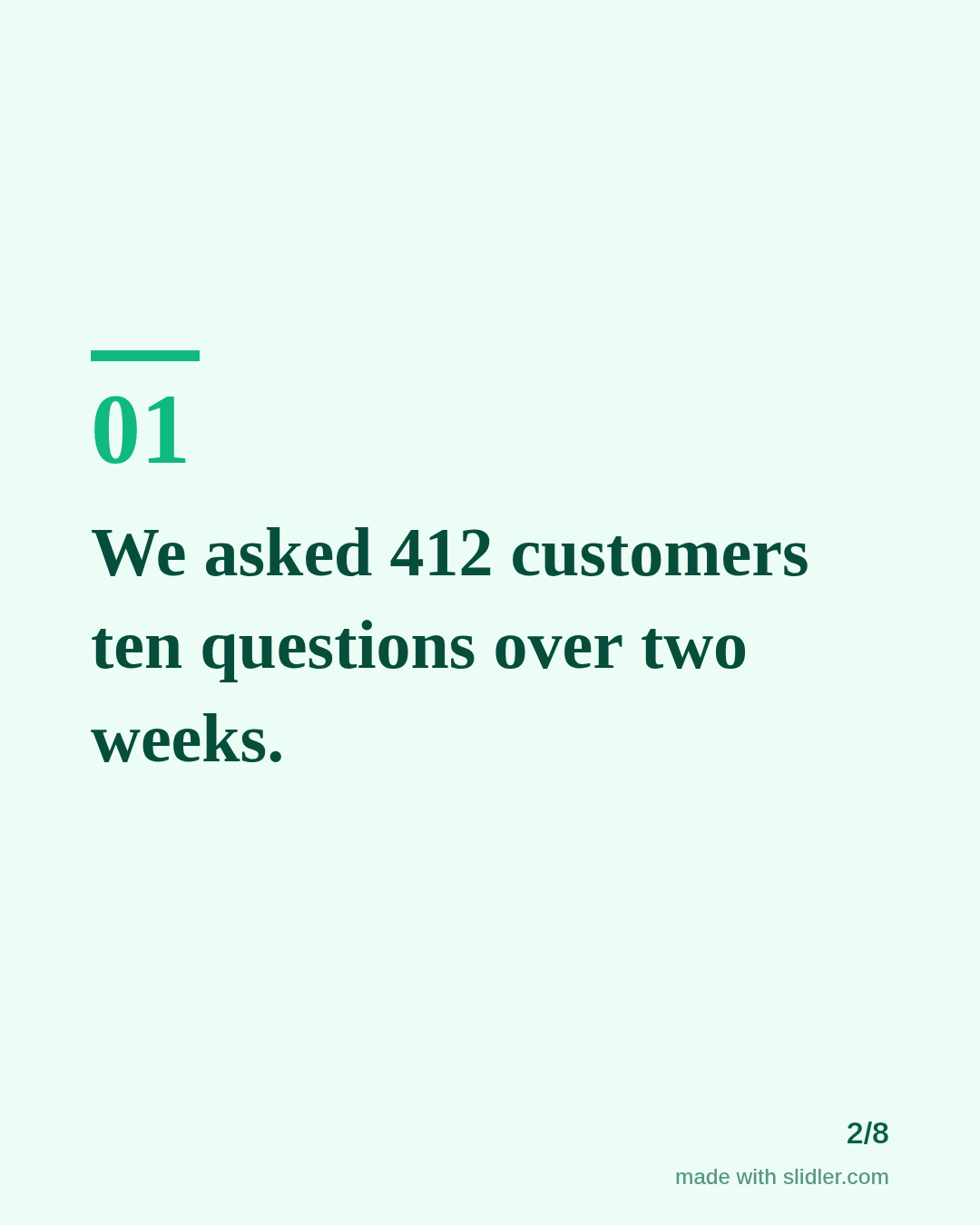
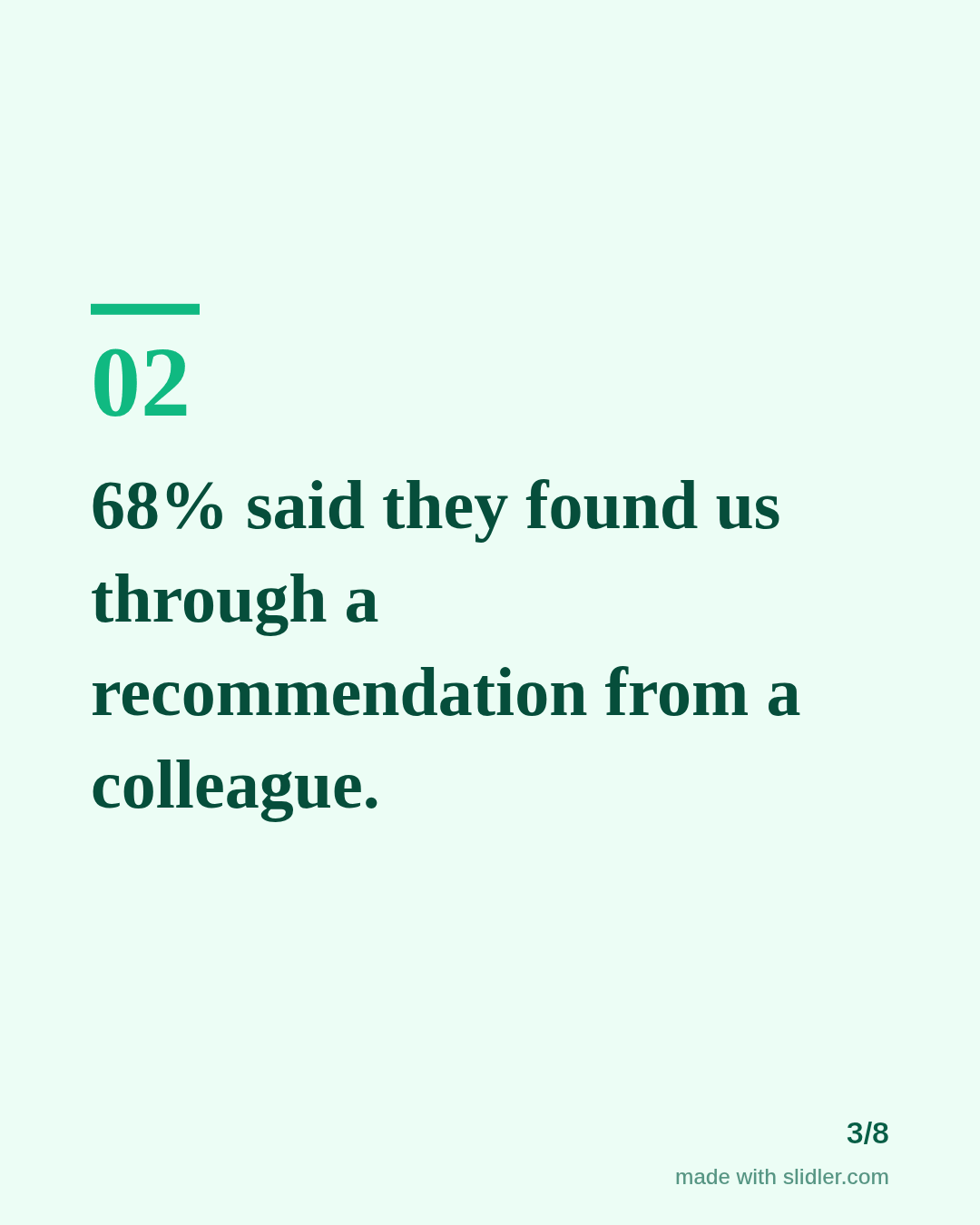
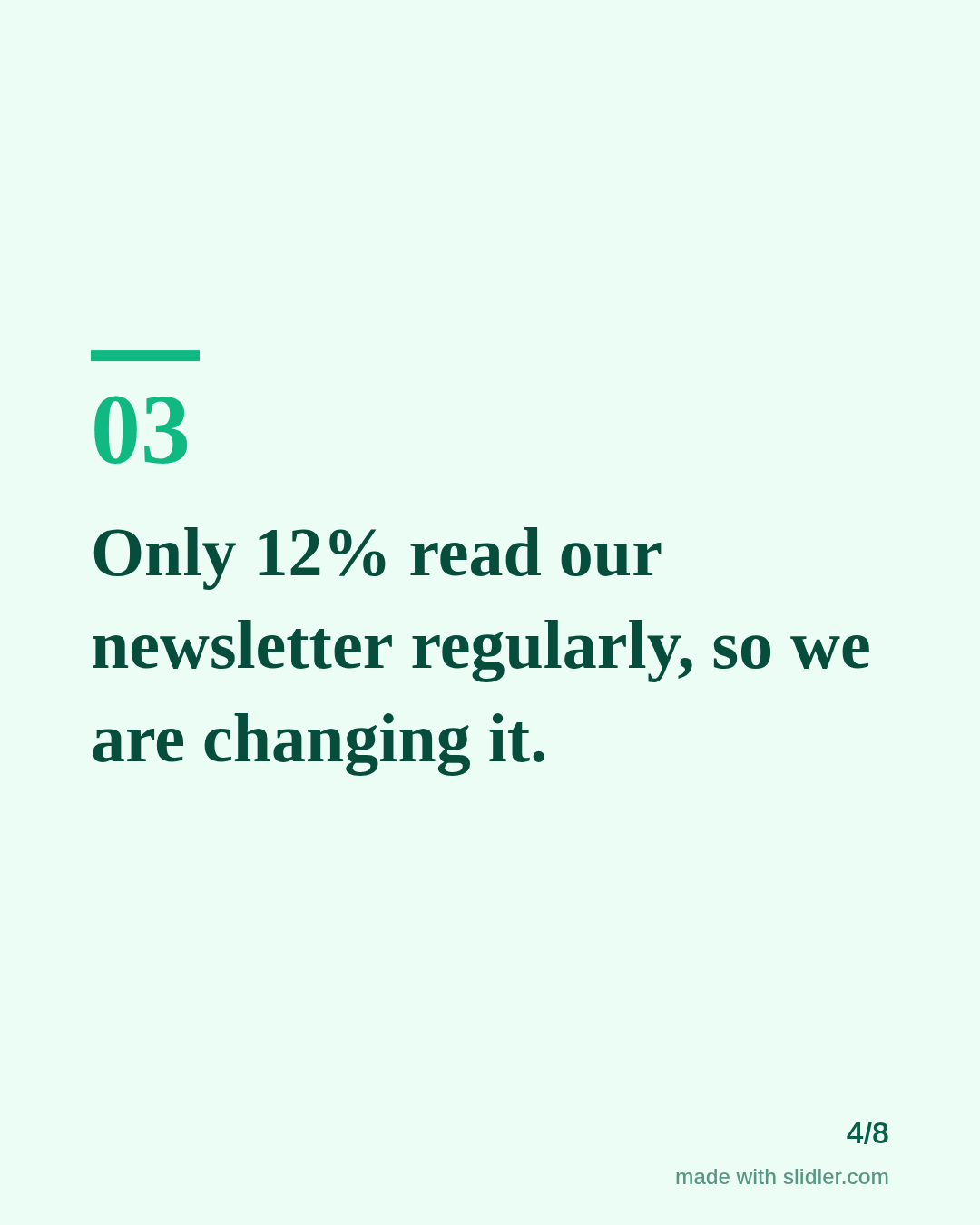

How to use this template
- Cover: a number and where the data comes from.
- One figure per slide with what it means in the same sentence.
- Say how the data was collected on the first point.
- Close with what you will change because of it.
Tip: Round numbers carefully and state the sample size once; it makes every other slide more trusted.
Edit the sample and make your carousel (free, no sign-up)
The first line becomes the cover; each sentence becomes a slide. Replace the sample with your own words.
FAQ
How do I make a statistics carousel?
Write one finding per line with the number first, paste the lines into Slidler and check each slide reads on its own.
Where can I get numbers for a carousel?
Your own surveys, product data or a public report; credit the source on the first or last slide.
Is this template free?
Yes. Slidler is free and needs no account. Free exports carry a small “made with slidler.com” mark.
What size are the slides?
1080×1350 pixels (4:5 portrait), the size LinkedIn and Instagram show largest in the feed. LinkedIn gets a PDF; Instagram gets a zip of PNGs.
Related templates
- Case study LinkedIn carousel template
- LinkedIn carousel template for B2B companies
- Comparison LinkedIn carousel template
- Product launch LinkedIn carousel template
- Tips list LinkedIn carousel template
Start from your own content instead: PDF to carousel · Article to carousel · All carousel templates