Comparison LinkedIn carousel template
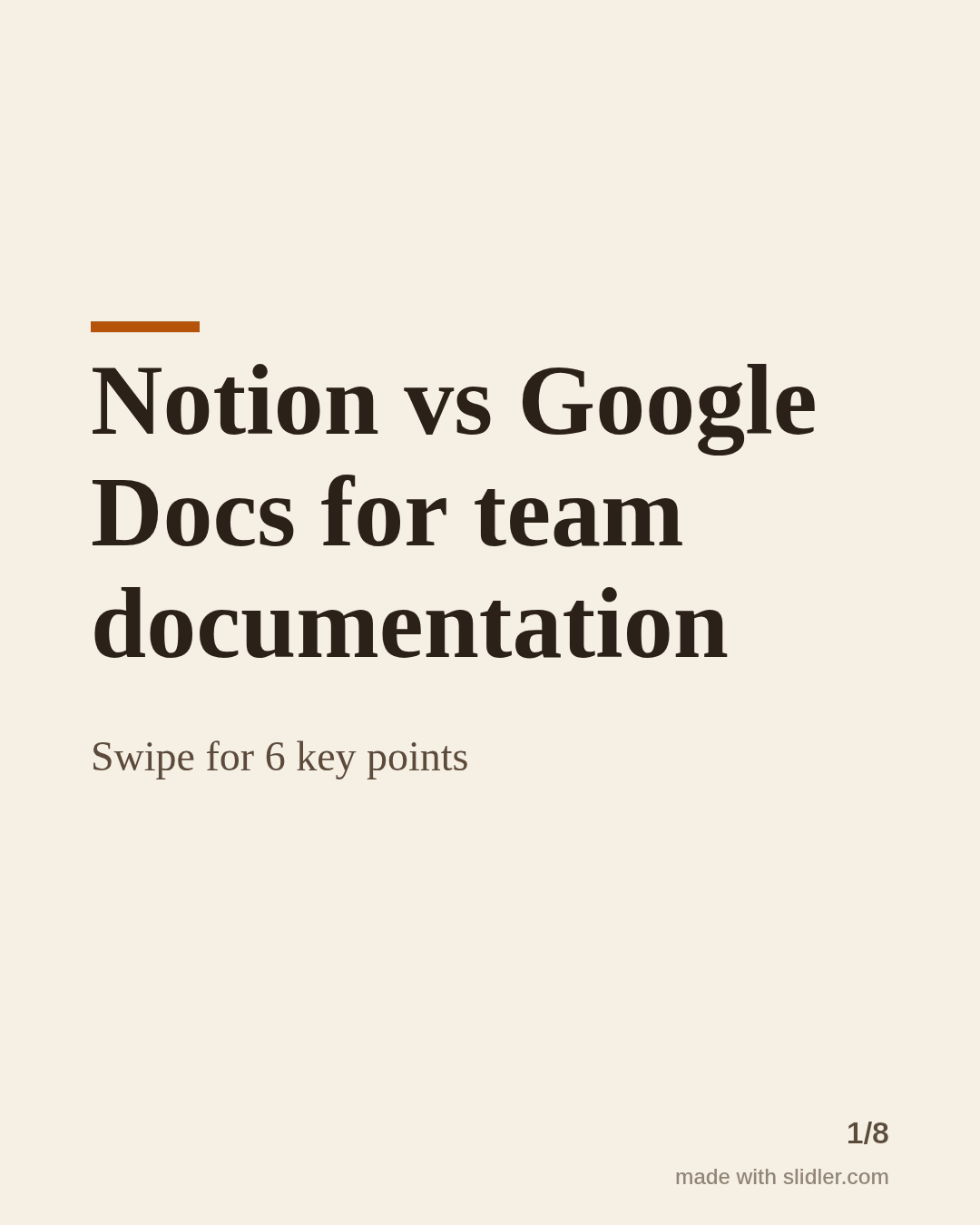
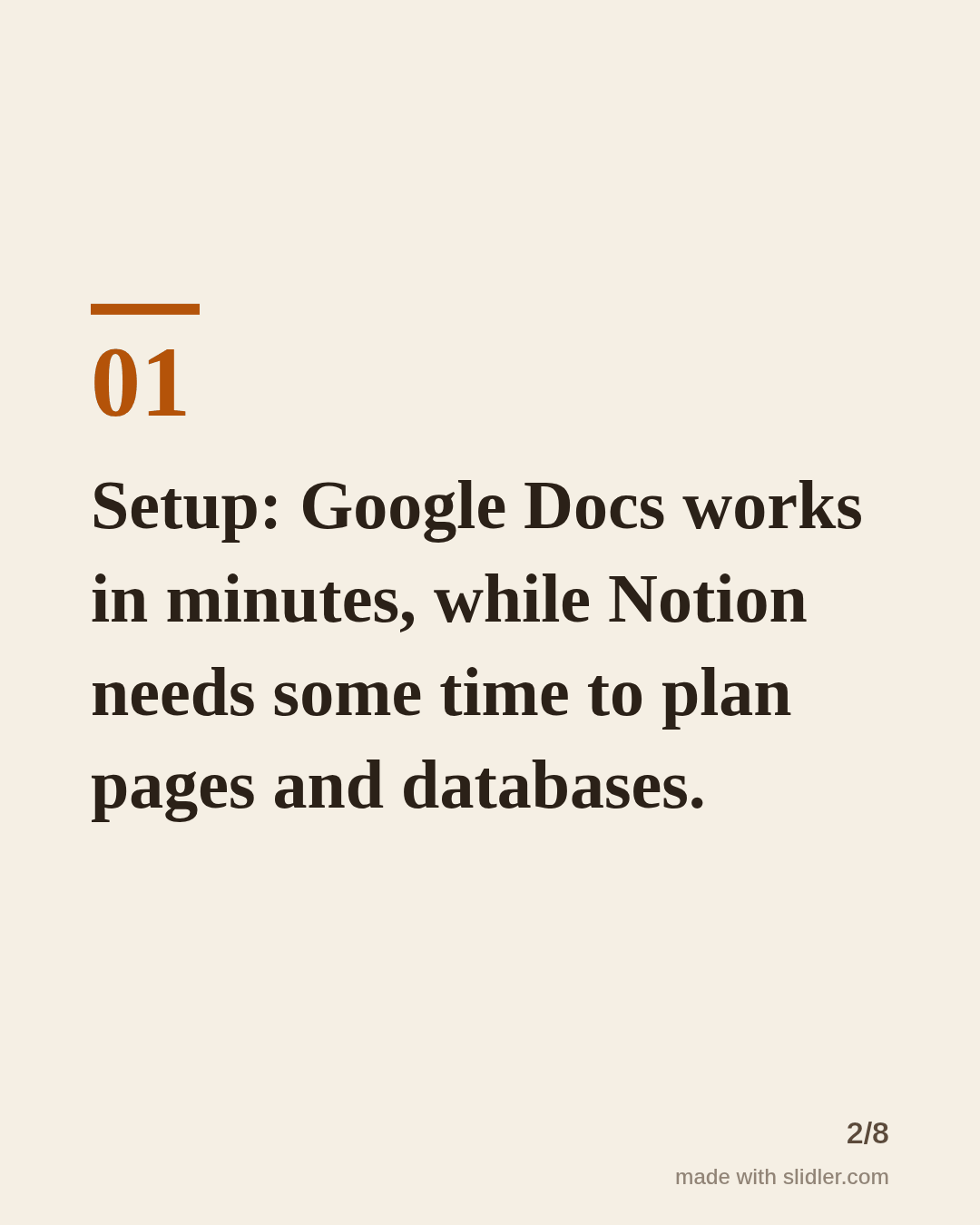
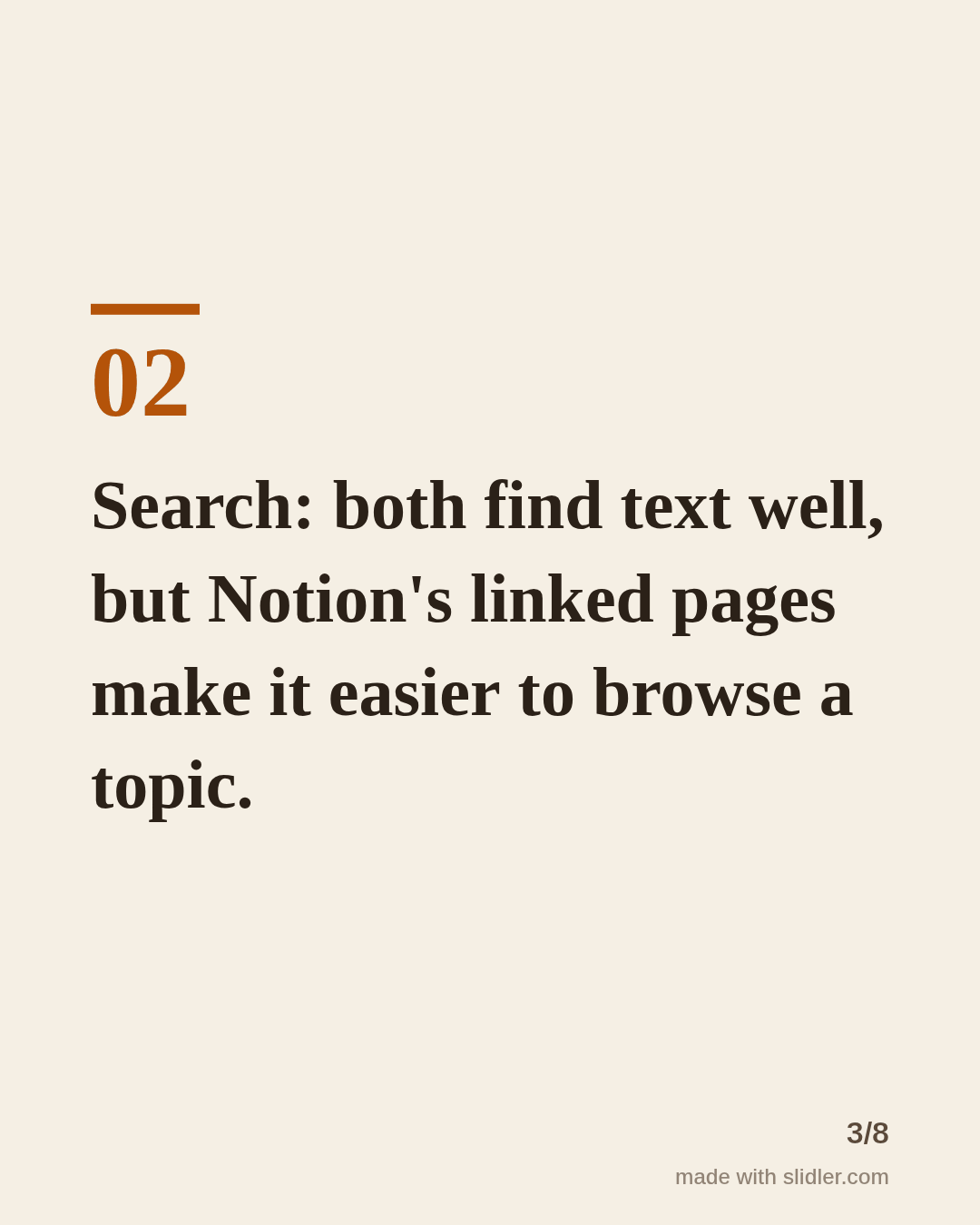
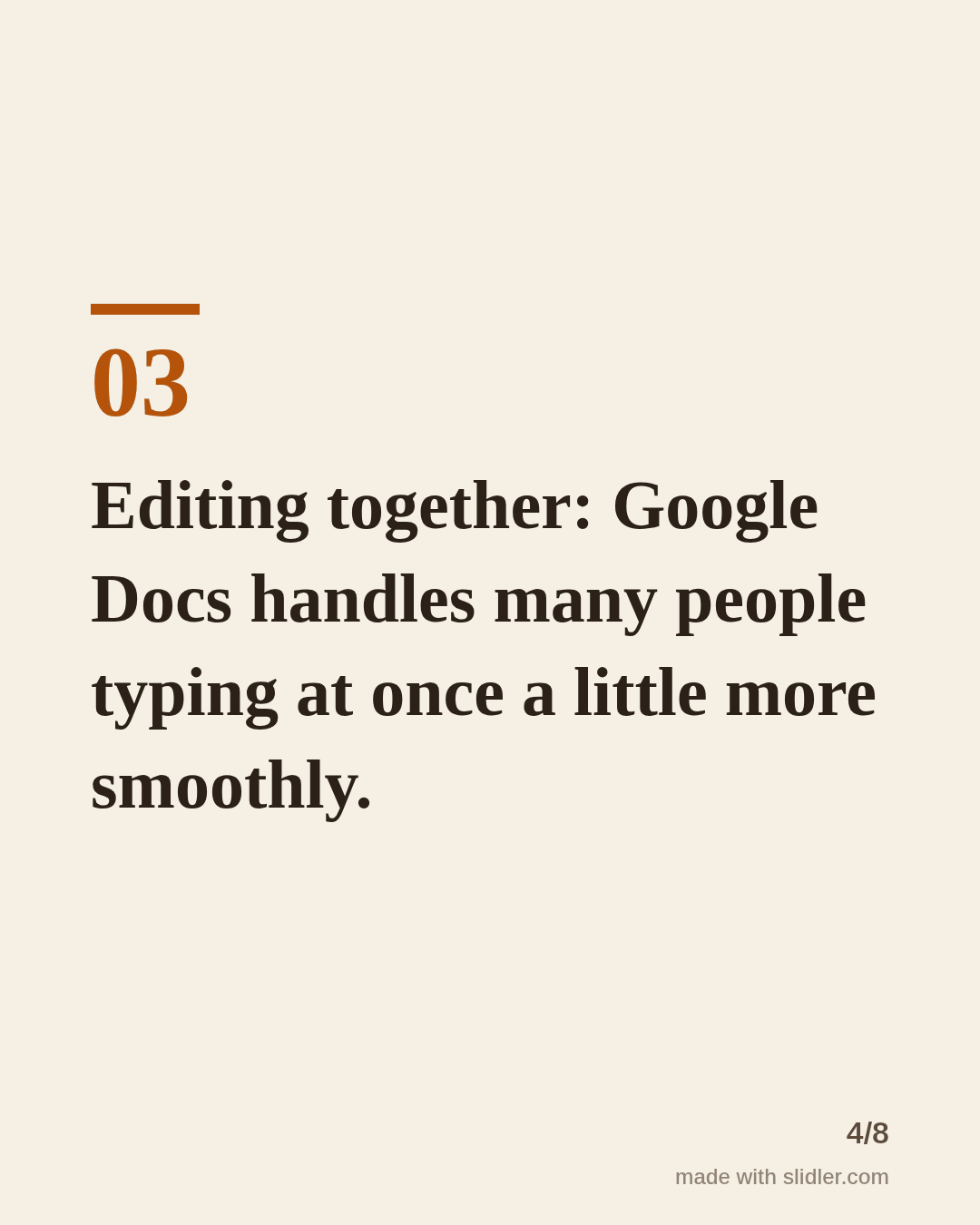
Comparison carousels help people decide. This template compares two options one criterion at a time and ends with who each one suits. Below is a sample carousel Slidler made from the text in the editor; change the text to yours and make your own in under a minute.
Sample carousel (5 of 8 slides)
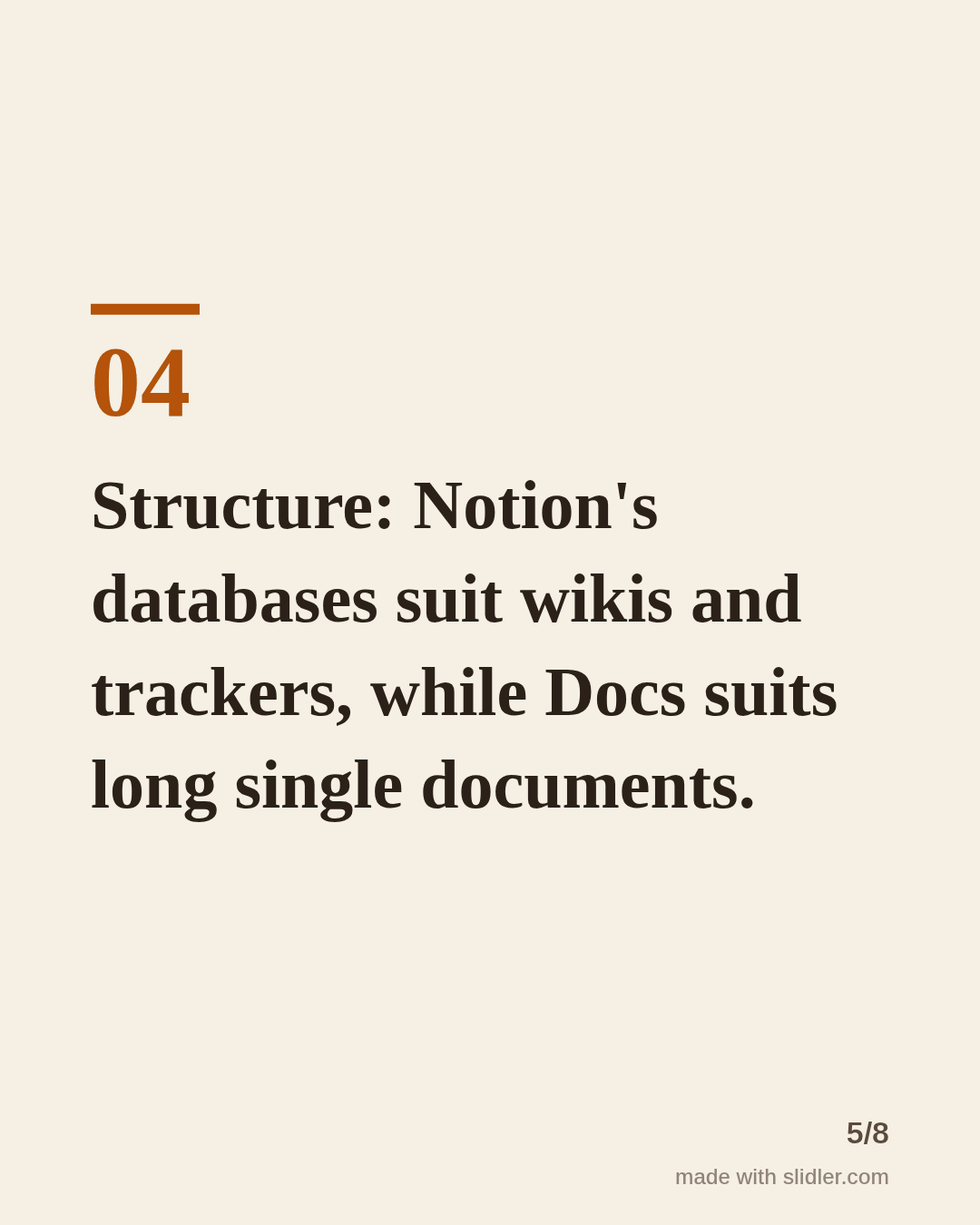
How to use this template
- Cover: "A vs B for" a specific job.
- One criterion per slide, both options in the same sentence.
- Stay fair; readers know both tools.
- Last point: who should pick which.
Tip: Compare for one specific job, not overall; "for team docs" makes the post useful and harder to argue with.
Edit the sample and make your carousel (free, no sign-up)
The first line becomes the cover; each sentence becomes a slide. Replace the sample with your own words.
FAQ
How do I make a comparison carousel?
Write one line per criterion that covers both options, then a final line on who should pick which.
Can I compare more than two options?
Yes, but keep each slide to one criterion; three options per sentence gets hard to read.
Is this template free?
Yes. Slidler is free and needs no account. Free exports carry a small “made with slidler.com” mark.
What size are the slides?
1080×1350 pixels (4:5 portrait), the size LinkedIn and Instagram show largest in the feed. LinkedIn gets a PDF; Instagram gets a zip of PNGs.
Related templates
- LinkedIn carousel template for B2B companies
- LinkedIn carousel template for marketers
- LinkedIn carousel template for software developers
- Product launch LinkedIn carousel template
- Case study LinkedIn carousel template
Start from your own content instead: Slidler vs aiCarousels vs PostNitro · Text to carousel · All carousel templates