LinkedIn carousel template for project managers
Project managers have the war stories LinkedIn loves. This template turns what you learned on a project into a practical carousel. Below is a sample carousel Slidler made from the text in the editor; change the text to yours and make your own in under a minute.
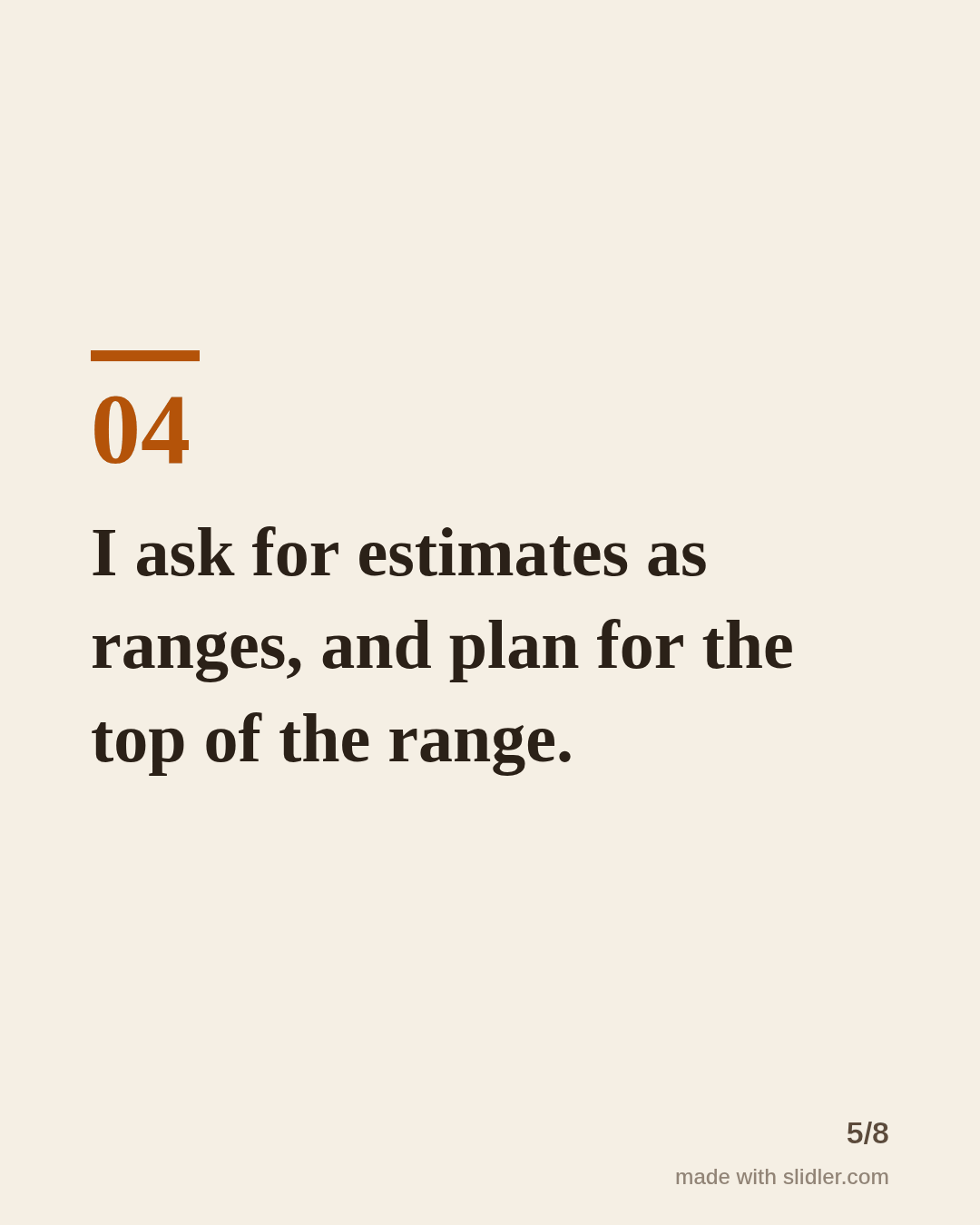
Sample carousel (5 of 8 slides)
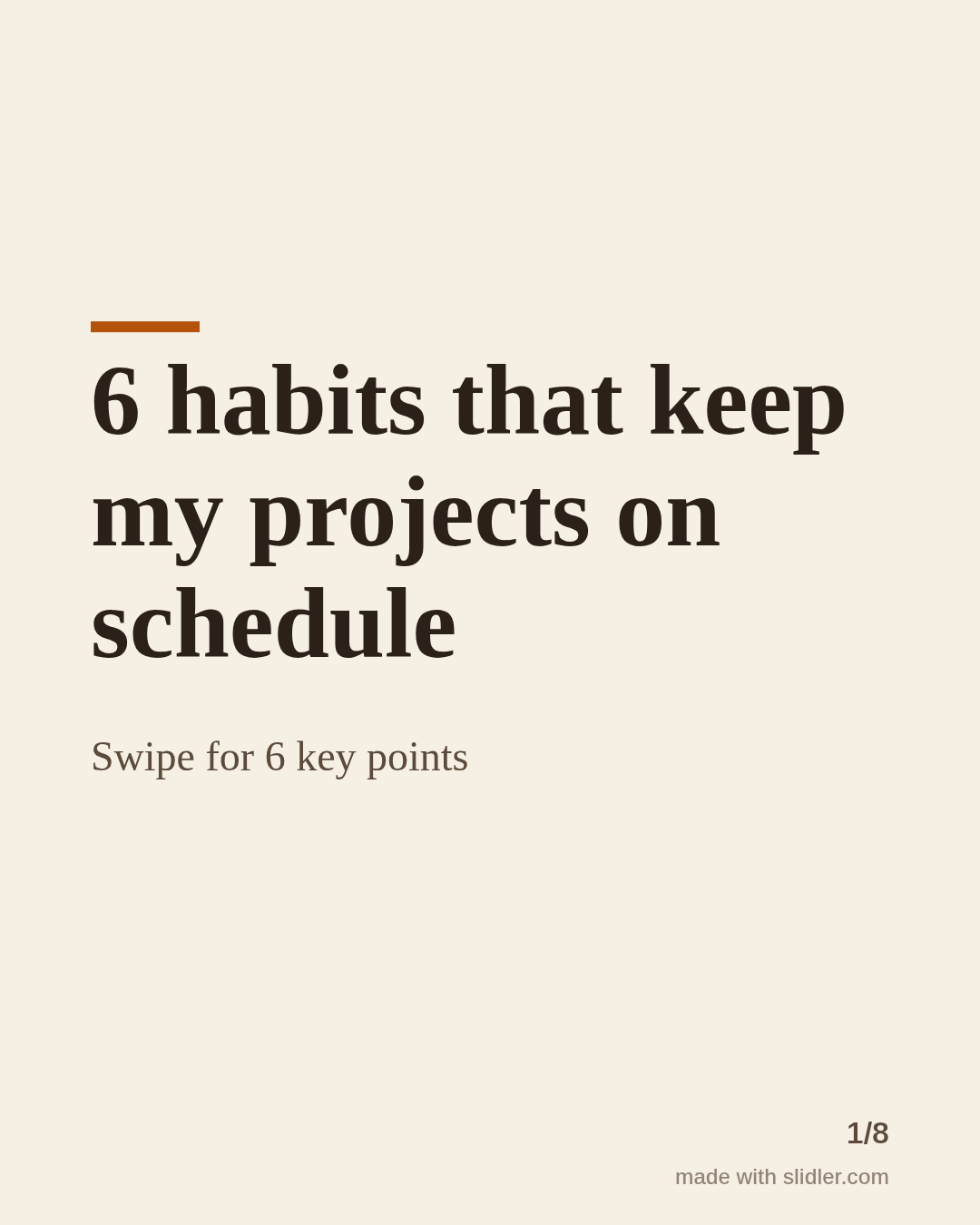
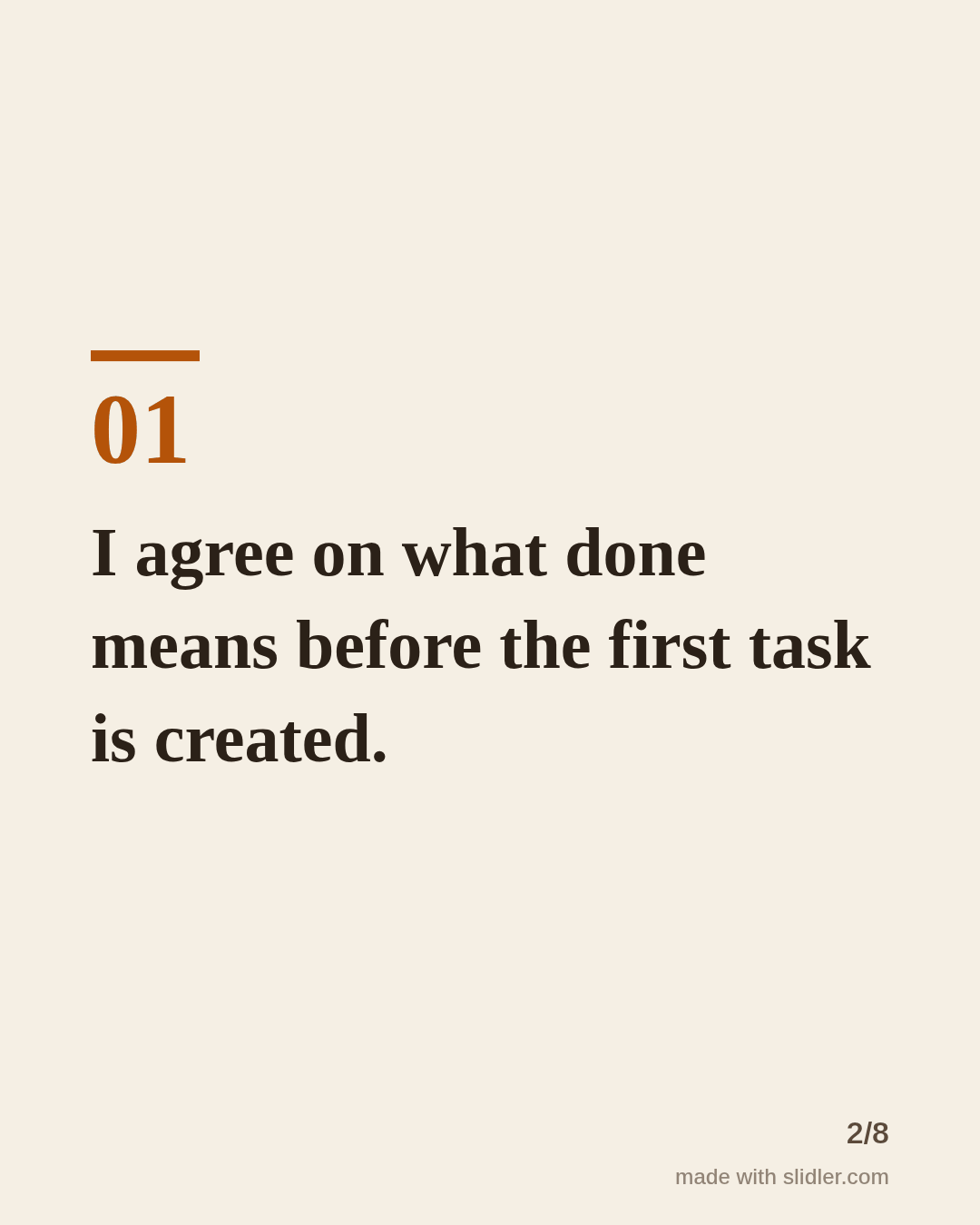
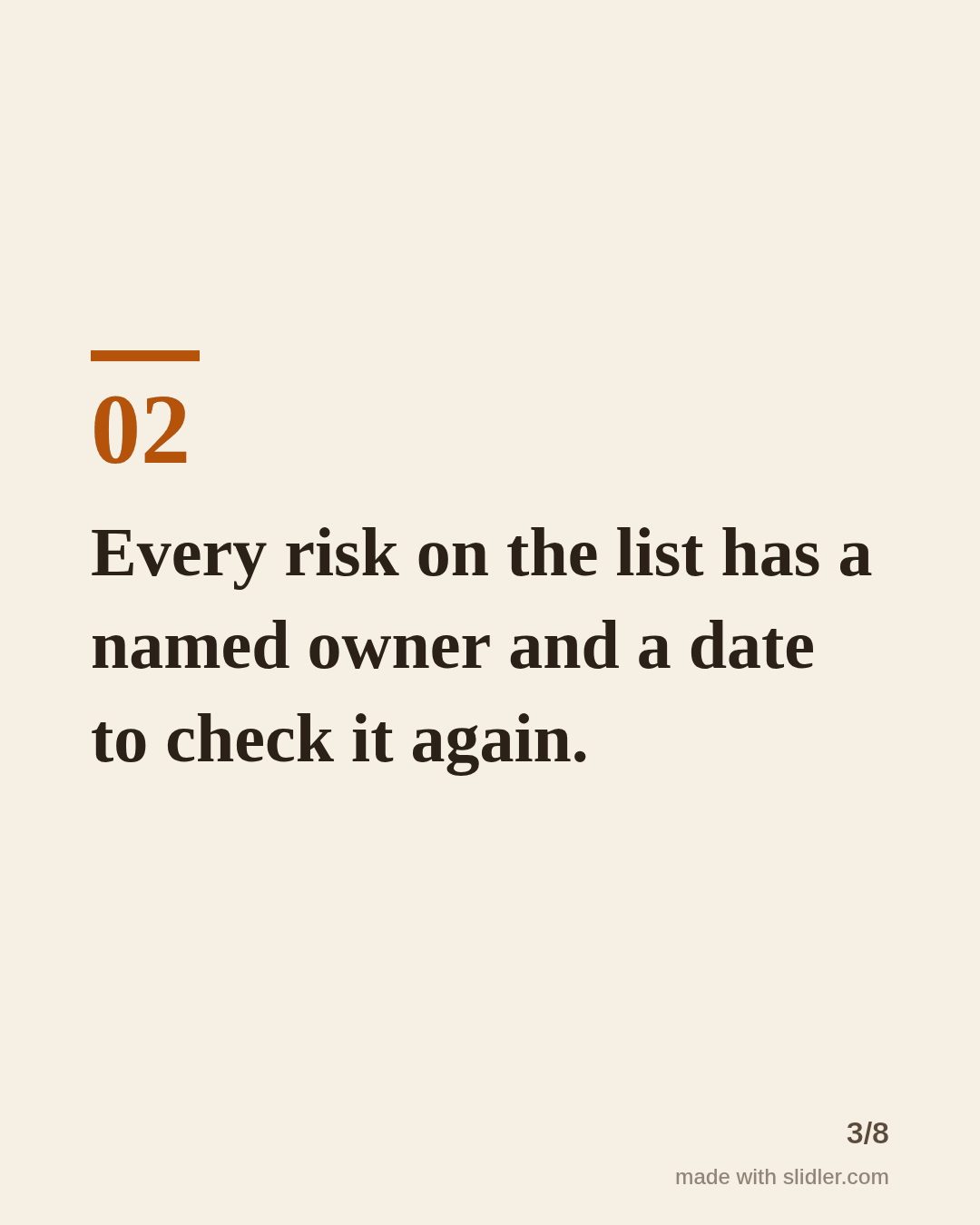
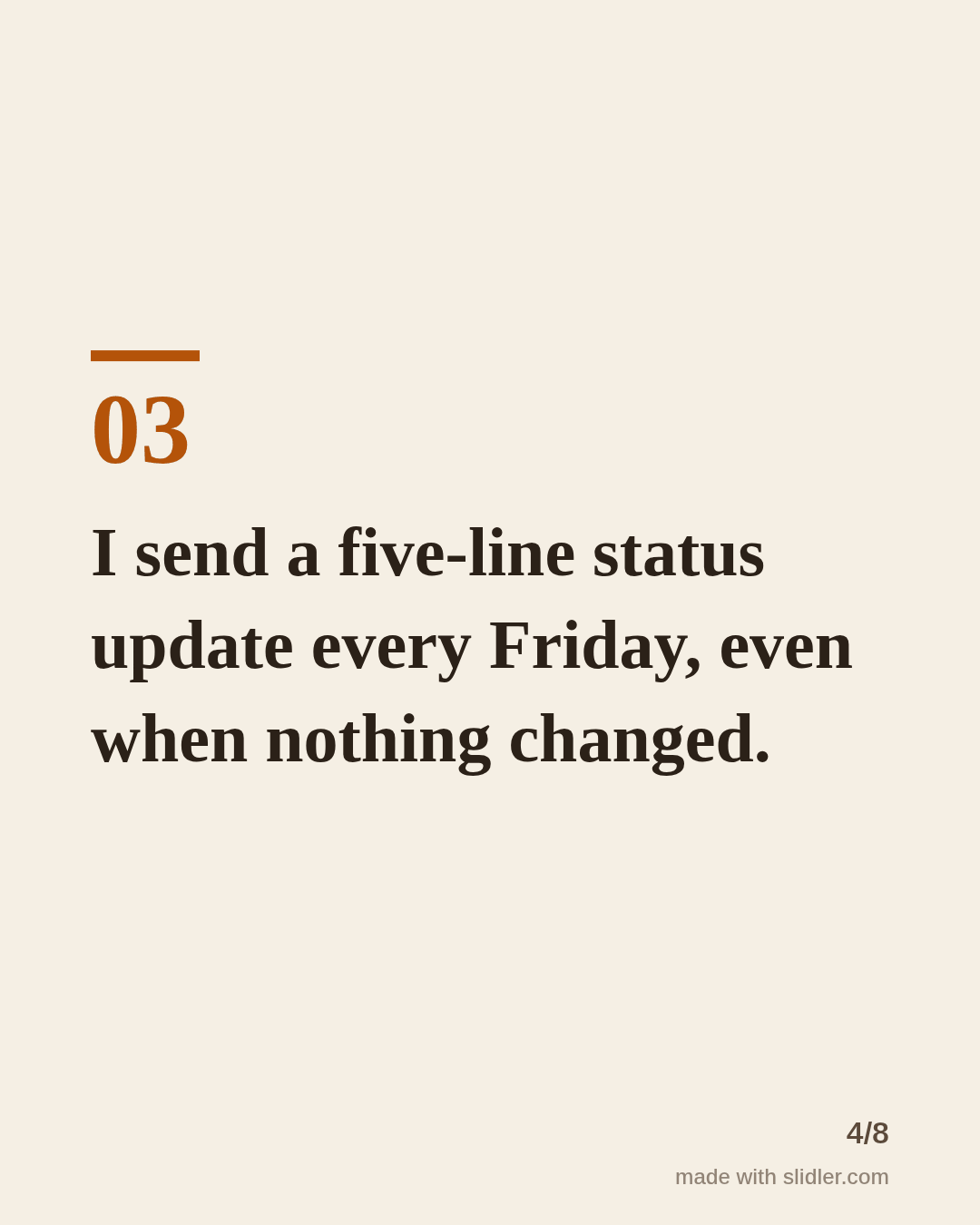
How to use this template
- Cover: a number and the outcome readers want.
- One habit per slide, written as something you do.
- Add the reason or the result in the same sentence.
- Ask readers which habit they would steal.
Tip: Mention the tool you use only if it matters; habits travel better than tool tips.
Edit the sample and make your carousel (free, no sign-up)
The first line becomes the cover; each sentence becomes a slide. Replace the sample with your own words.
FAQ
What should project managers post on LinkedIn?
Habits, templates, lessons from late projects and how you handle stakeholders and scope changes.
How long should a project management carousel be?
Six to eight slides is enough for one idea per slide without readers dropping off.
Is this template free?
Yes. Slidler is free and needs no account. Free exports carry a small “made with slidler.com” mark.
What size are the slides?
1080×1350 pixels (4:5 portrait), the size LinkedIn and Instagram show largest in the feed. LinkedIn gets a PDF; Instagram gets a zip of PNGs.
Related templates
- Checklist LinkedIn carousel template
- How-to guide LinkedIn carousel template
- Framework LinkedIn carousel template
- LinkedIn carousel template for founders
- LinkedIn carousel template for recruiters
Start from your own content instead: Text to carousel · Turn a Notion page into a carousel · All carousel templates