Lessons learned LinkedIn carousel template
Lessons-learned posts are the most saved format on LinkedIn because they compress experience. This template turns a project or a year into a carousel people keep. Below is a sample carousel Slidler made from the text in the editor; change the text to yours and make your own in under a minute.
Sample carousel (5 of 9 slides)

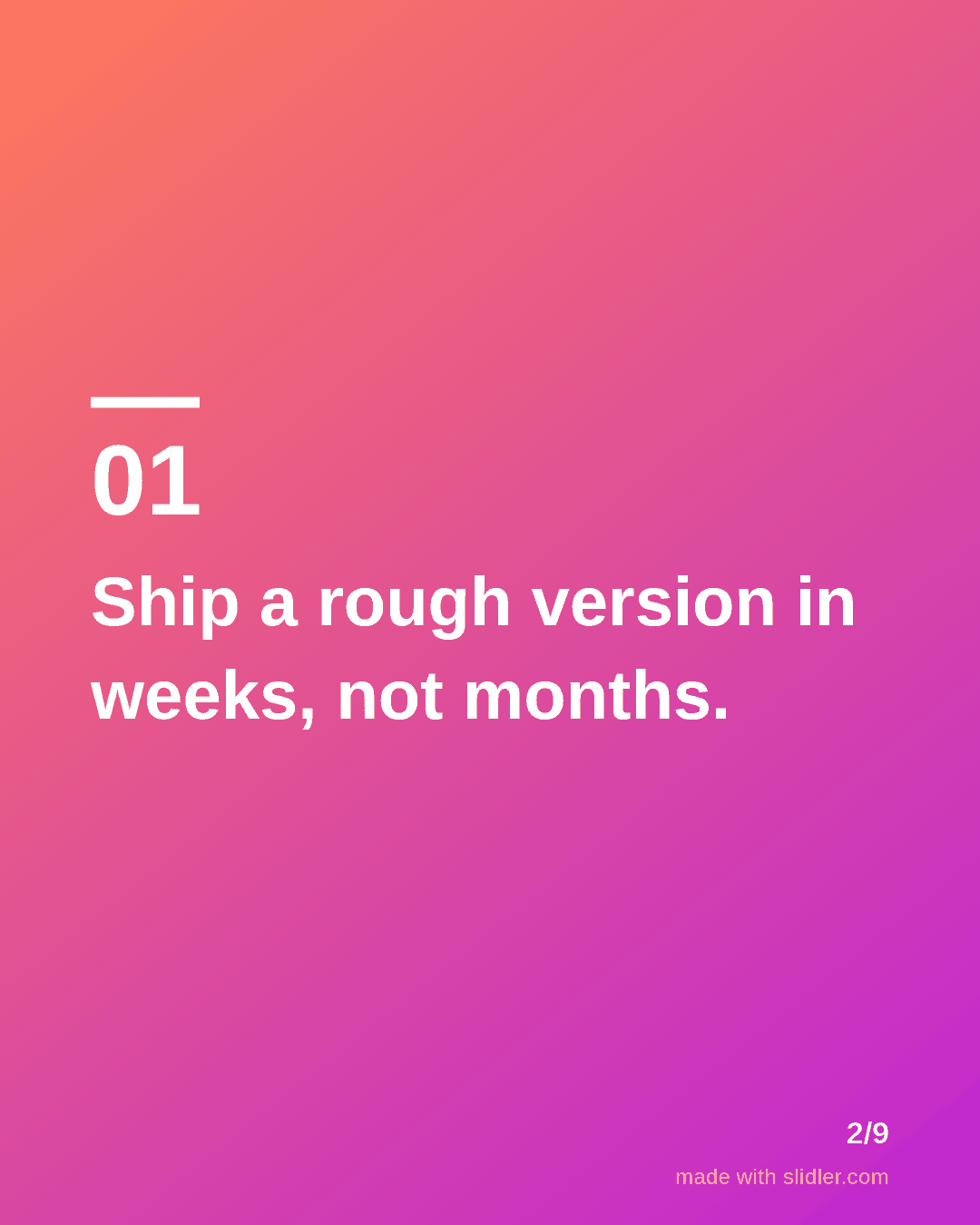

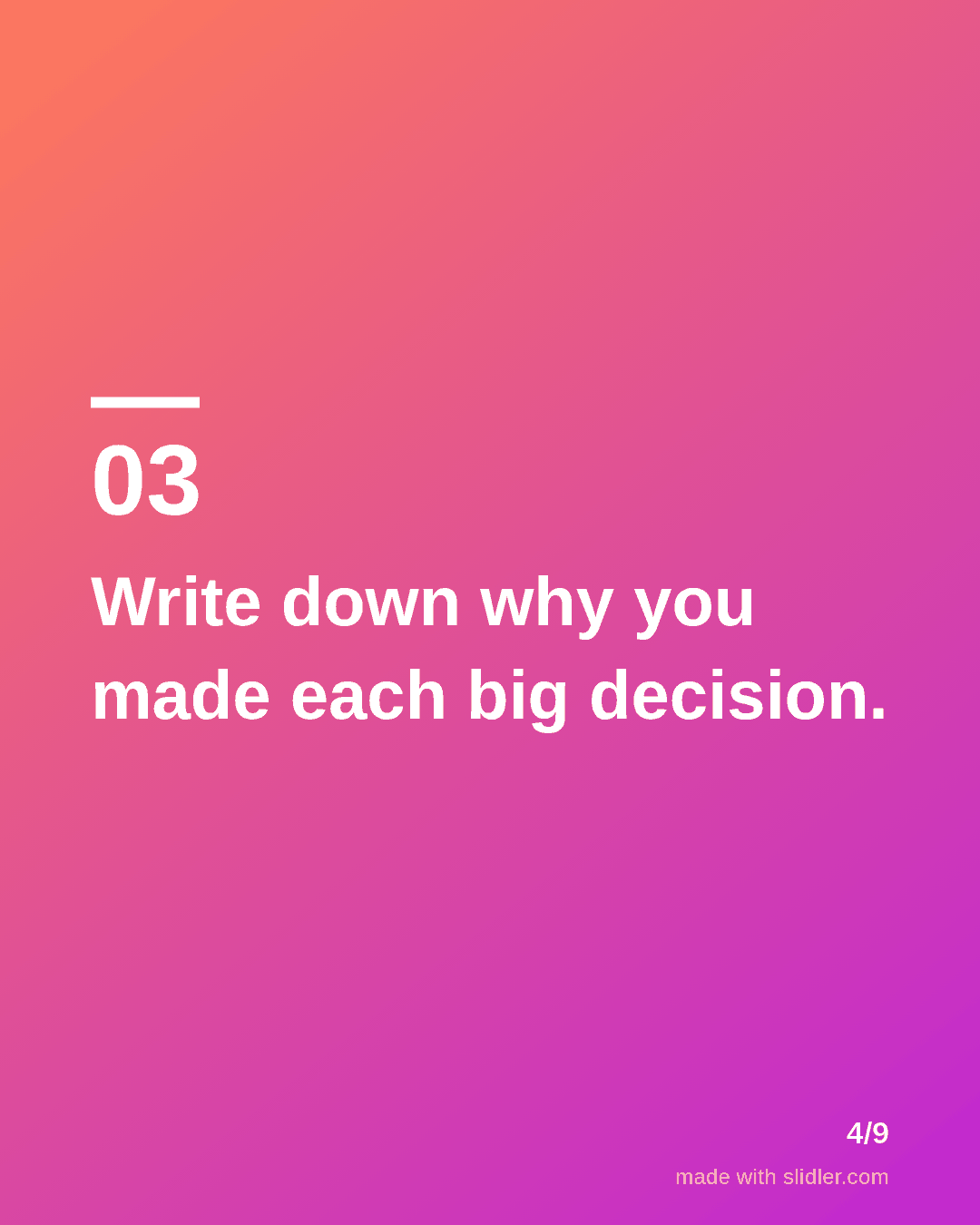

How to use this template
- Cover: a number of lessons and where they came from.
- One lesson per slide, as an instruction.
- Put the most surprising one in the middle.
- End by asking readers for theirs.
Tip: Lessons tied to a specific event read as experience; generic ones read as quotes.
Edit the sample and make your carousel (free, no sign-up)
The first line becomes the cover; each sentence becomes a slide. Replace the sample with your own words.
FAQ
How many lessons should a carousel have?
Five to eight; fewer feels thin, more gets skimmed.
How do I write a lessons-learned post?
Pick one project, list what you would do differently, and keep each lesson to one sentence.
Is this template free?
Yes. Slidler is free and needs no account. Free exports carry a small “made with slidler.com” mark.
What size are the slides?
1080×1350 pixels (4:5 portrait), the size LinkedIn and Instagram show largest in the feed. LinkedIn gets a PDF; Instagram gets a zip of PNGs.
Related templates
- Personal story LinkedIn carousel template
- Year in review LinkedIn carousel template
- Mistakes to avoid LinkedIn carousel template
- Product launch LinkedIn carousel template
- Case study LinkedIn carousel template
Start from your own content instead: Turn a LinkedIn text post into a carousel · Turn a newsletter issue into a LinkedIn carousel · All carousel templates